
Docker Compose Cheatsheet - Most useful commands with examples
BTW, docker-compose is different from docker compose...
Here’s a Docker Compose cheatsheet with annotated examples to help you master Compose files and commands quickly.
This guide is part of Developer Tools: The Complete Guide to Modern Development Workflows.
Prerequisites
Docker Engine must be installed before you use Compose. On Ubuntu, follow Install Docker on Ubuntu to choose the right install method and set up the docker compose plugin.
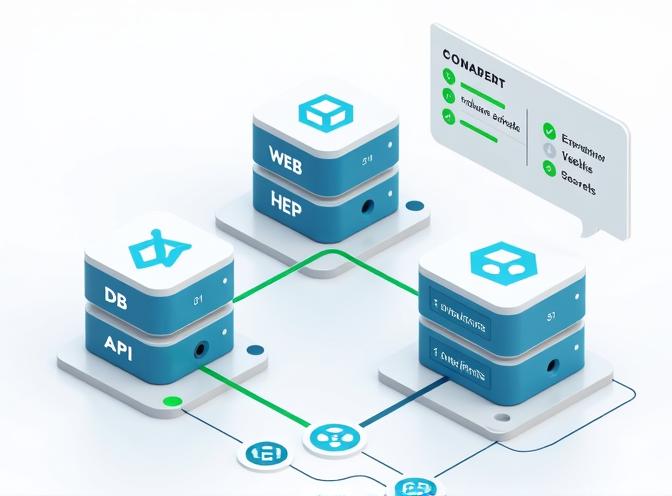
Compose File Reference: docker-compose.yml
Core structure:
version: '3'       # Compose file format version

services:
  web:
    image: nginx:latest
    ports:
      - "8080:80"   # Host port 8080:Container port 80
  db:
    image: postgres
    environment:            # Environment variables
      POSTGRES_PASSWORD: example
    volumes:
      - db_data:/var/lib/postgresql/data

networks:          # Custom network
  appnet:
    driver: bridge

volumes:           # Named volume
  db_data:
- services: Each container in your multi-container app. In the example above we have two services:
webanddb. For individual container operations, see the Docker Cheatsheet. - networks & volumes: Define isolated networks and persistent storage - we have
appnetnetwork anddb_datavolume here.
Examples
Single service with port mapping
services:
  app:
    build: .
    ports:
      - "8000:80"   # Host port 8000:Container port 80
Exposes app on host port 8000 and builds from Dockerfile in current directory.
Multi-service with shared volume and custom network
version: '3'
services:
  web:
    build: .
    ports:
      - "5000:5000"
    volumes:
      - type: bind
        source: ./app
        target: /app
    networks:
      - mynet
  db:
    image: postgres
    volumes:
      - db_data:/var/lib/postgresql/data
    networks:
      - mynet

networks:
  mynet:

volumes:
  db_data:
Web and DB on same network; DB uses persisted named volume - db_data.
Using build context and Dockerfile path
You can build docker image on demand from the specified in docker-compose.yam Dockerfile.
services:
  app:
    build:
      context: .
      dockerfile: docker/MyDockerfile
Sharing data between services
services:
  web:
    image: nginx
    volumes:
      - shared_data:/usr/share/nginx/html
  worker:
    image: myworker
    volumes:
      - shared_data:/usr/src/app/data

volumes:
  shared_data:
Both services access same volume (for static files or data exchanges) - shared_data.
Advanced Compose File Options
- environment: Set ENV variables for containers.
- depends_on: Control service startup order.
- deploy.replicas: Scale service in Swarm mode.
Example:
services:
  web:
    image: nginx
    deploy:
      replicas: 3
    depends_on:
      - db
Starts 3 web instances; only controls startup order (not readiness).
Essential Docker Compose Commands
| Command | Description | Example Usage |
|---|---|---|
docker-compose up |
Creates and starts containers | docker-compose up |
docker-compose up -d |
Run in background | docker-compose up -d |
docker-compose exec |
Execute command in running container | docker-compose exec web bash |
docker-compose build |
Build/rebuild images | docker-compose build |
docker-compose down |
Stop and remove containers, networks, volumes, and images | docker-compose down |
docker-compose logs -f |
View and follow logs | docker-compose logs -f |
docker-compose ps |
List running containers | docker-compose ps |
docker-compose run |
Run one-off commands (bypasses command in Compose file) | docker-compose run web python manage.py migrate |
docker-compose stop |
Stop running containers (can restart with start) |
docker-compose stop |
docker-compose restart |
Restart services | docker-compose restart web |
docker-compose pull |
Pull service images | docker-compose pull |
docker-compose rm |
Remove stopped service containers | docker-compose rm web |
docker-compose config |
Validate and view Compose file | docker-compose config |
docker-compose up --scale web=3 |
Start multiple instances of a service | docker-compose up --scale web=3 |
Common Compose Patterns
-
Databases with persistent data
services:
  mysql:
    image: mysql
    environment:
      MYSQL_ROOT_PASSWORD: password
    volumes:
      - mysql_data:/var/lib/mysql

volumes:
  mysql_data:
DB data persists in the
mysql_datavolume across container restarts. -
Bind mounting code for development
services:
  app:
    build: .
    volumes:
      - .:/app
Live-edit code on host, auto-reflected in container.
Useful Flags
-d: Detach mode (run in background).--build: Force rebuild images before starting.--force-recreate: Recreate containers even if unchanged.--remove-orphans: Remove containers not defined in Compose file.
Defining and Customizing Services
You can define and customize services, networks, and volumes in Docker Compose by leveraging the docker-compose.yml file, which centralizes all your application’s configuration and orchestration needs.
- Services are defined under the
serviceskey. - Each service represents a container configuration, where you can set:
- Image: Select an image from Docker Hub or another registry.
- Ports: Map container ports to host ports.
- Environment variables: Pass configuration values.
- Volumes: Persist data or share files/folders with the host or other services.
- Networks: Control which networks the service can access.
Example:
services:
  web:
    image: nginx:latest
    ports:
      - "8080:80"   # Host port 8080:Container port 80
    environment:
      - NGINX_HOST=localhost
    volumes:
      - web_data:/usr/share/nginx/html
    networks:
      - frontend

  db:
    image: postgres:13
    environment:
      POSTGRES_USER: admin
      POSTGRES_PASSWORD: secret
    volumes:
      - db_data:/var/lib/postgresql/data
    networks:
      - backend
- Here, the
webservice uses the nginx image, sets an environment variable, attaches a volume, opens port 80 as 8080 on the host, and connects to thefrontendnetwork. Thedbservice does something similar for PostgreSQL.
Customizing Networks
- Networks control which services can communicate. Compose creates a default network, but you can define more, specify custom drivers, set options, and determine which service joins which network for fine-grained isolation.
- Define networks at the top level under
networks, and list which networks a service should attach to with the service-levelnetworkskey.
Example:
networks:
  frontend:
    driver: bridge
  backend:
    driver: bridge
    driver_opts:
      com.docker.network.bridge.host_binding_ipv4: "127.0.0.1"
- Attach networks to services:
services:
  app:
    networks:
      - frontend
      - backend
  db:
    networks:
      - backend
- This setup allows the
appservice to access both users on thefrontendandbackendnetworks, whiledbis only accessible within thebackend.
Customizing Volumes
- Volumes are defined under the top-level
volumeskey. Mount them to containers using thevolumeskey under a service. - Volumes can be named, use custom drivers, and be shared across multiple services for data persistence and sharing.
Example:
volumes:
  web_data:                # Named volume for web content
  db_data:                 # Named volume for database

services:
  web:
    volumes:
      - web_data:/usr/share/nginx/html

  db:
    volumes:
      - db_data:/var/lib/postgresql/data
- In this example,
web_datais persisted and available to any container that mounts it.db_dataensures database data is never lost upon container recreation. - You can define bind-mounts with custom driver options for advanced cases:
volumes:
  db_data:
    driver: local
    driver_opts:
      type: none
      device: /data/db_data
      o: bind
- This configuration sets up a bind-mount from the host path
/data/db_datainto the container.
Summary of Best Practices:
- Use the service name as a DNS hostname for inter-service communication.
- Attach services to multiple networks as needed to control access.
- Use named volumes for persistent storage and data sharing.
- Define everything using YAML, enabling version control and easy deployment scripts.
- For container management and visualization, consider Install Portainer on Linux.
Multiple compose files
To organize complex multi-service setups in Docker Compose, you can use multiple compose files and override files, allowing modular, environment-specific, and scalable configurations. Here’s how this works:
- Base and Override File Structure
- Create a base file (
compose.yamlordocker-compose.yml) containing all common, default service definitions. - Add environment-specific override files (e.g.,
docker-compose.override.yml,docker-compose.dev.yml,docker-compose.prod.yml).
Example file structure:
/project-directory
|-- docker-compose.yml           # Base configuration
|-- docker-compose.override.yml  # Local/dev overrides (applied automatically)
|-- docker-compose.prod.yml      # Production overrides
|-- docker-compose.test.yml      # Test overrides (if needed)
The base config defines core services, while each override customizes settings for a specific environment or case.
- How File Overrides Work
- Merging: When you run
docker compose up, Docker Compose merges the base with any overrides in order; subsequent files override, extend, or add to settings in previous files. - Overriding Fields: If a service or field is defined in multiple files, the last-specified file’s value is used. New fields are added.
Example merge:
docker-compose.yml:services: web: image: myapp ports: - "8000:80"docker-compose.override.yml:services: web: environment: - DEBUG=true- Result: The
webservice uses both the base image and port plus the overriddenDEBUGenvironment variable.
- Command Usage for Multiple Files
- Default behavior: If present, Docker Compose automatically loads
docker-compose.override.ymltogether withdocker-compose.ymlwhen you run any command. - Specifying files manually: Use
-fflags to control which files are merged and in what order:docker compose -f docker-compose.yml -f docker-compose.prod.yml up -d- This ignores the default override and uses the production-specific settings.
- Practical Organization Strategies
- Environment separation: Use one override per environment: dev, test, prod, etc.
- Microservices and teams: Break configuration into separate files for different services or teams, and combine as needed.
- Feature toggles: Additional files can introduce or remove optional services or configuration for temporary needs (e.g., a
compose.debug.ymlfor extra logging).
- Benefits
- Clarity: Keeps individual files small and focused.
- Scalability: Easily add new services, environments, or settings.
- Maintainability: Only change or review relevant sections for a given deployment.
- Example: Switching Environments
Development:
docker compose -f docker-compose.yml -f docker-compose.dev.yml up
Production:
docker compose -f docker-compose.yml -f docker-compose.prod.yml up -d
Each environment gets only the configuration necessary for it, with all shared config in the base file.
Organizing complex Compose setups with multiple files - and leveraging the override/merge system-ensures modularity, environment-specific customization, and easy scalability for large, multi-service Docker applications.
For production deployment on a single Linux host — boot on startup, clean shutdown, updates, and log rotation — see Run Docker Compose as a Linux Service with systemd. For a comparison with Podman Quadlet, see Podman Quadlet vs Docker Compose for Linux Services.
