
Docker Model Runner Cheatsheet: Commands & Examples
Quick reference for Docker Model Runner commands
Docker Model Runner (DMR) is Docker’s official solution for running AI models locally, introduced in April 2025. This cheatsheet provides a quick reference for all essential commands, configurations, and best practices.
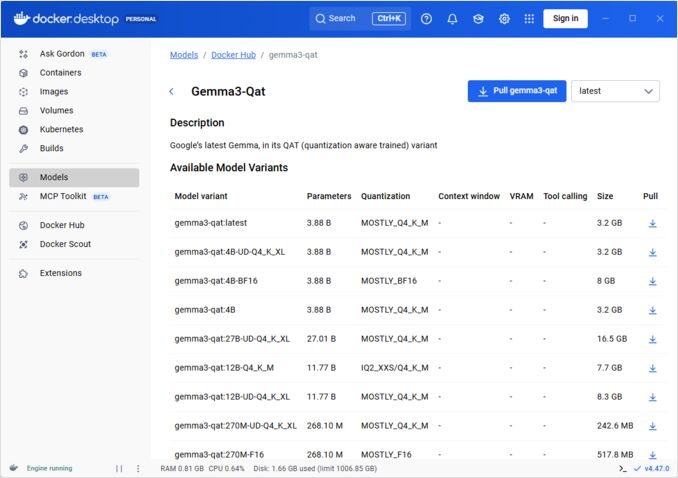
Installation
Docker Desktop
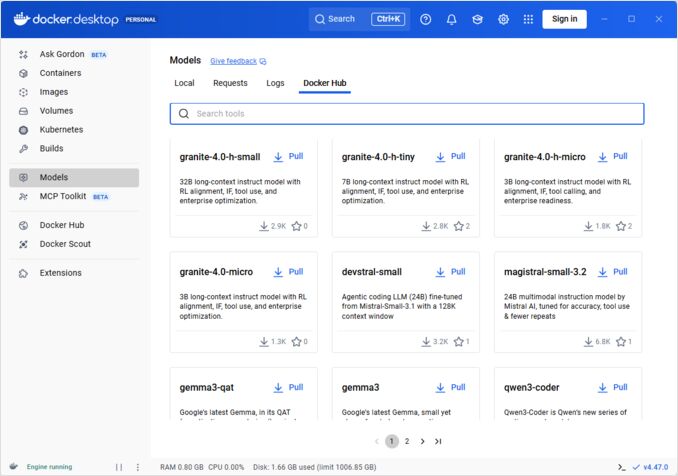
Enable Docker Model Runner through the GUI:
- Open Docker Desktop
- Go to Settings → AI tab
- Click Enable Docker Model Runner
- Restart Docker Desktop
/home/rg/prj/hugo-pers/content/post/2025/10/docker-model-runner-cheatsheet/docker-model-runner_w678.jpg
Docker Engine (Linux)
Install the plugin package:
# Ubuntu/Debian
sudo apt-get update
sudo apt-get install docker-model-plugin

# Fedora/RHEL
sudo dnf install docker-model-plugin

# Arch Linux
sudo pacman -S docker-model-plugin
Verify installation:
docker model --help
NVIDIA RTX support for Docker
To enable make LLMs running on GPU instead of CPU, install nvidia-container-toolkit:
distribution=$(. /etc/os-release;echo $ID$VERSION_ID)
curl -fsSL https://nvidia.github.io/libnvidia-container/gpgkey | sudo gpg --dearmor -o /usr/share/keyrings/nvidia-container-toolkit-keyring.gpg
curl -s -L https://nvidia.github.io/libnvidia-container/stable/deb/nvidia-container-toolkit.list | sed 's#deb https://#deb [signed-by=/usr/share/keyrings/nvidia-container-toolkit-keyring.gpg] https://#g' | sudo tee /etc/apt/sources.list.d/nvidia-container-toolkit.list
sudo apt-get update
sudo apt-get install -y nvidia-container-toolkit
sudo systemctl restart docker
then you can run containers with --gpus all
docker run --rm --gpus all <image> <command>
check that container can see the GPU:
docker run --rm --gpus all nvidia/cuda:12.2.2-base-ubi8 nvidia-smi
Adding NVidia Support for Docker Model Runner
Docker Model Runner requires explicit GPU configuration. Unlike standard docker run commands, docker model run doesn’t support --gpus or -e flags. Instead, you need to:
- Configure Docker daemon to use NVIDIA runtime by default
First, check where nvidia-container-runtime is installed:
which nvidia-container-runtime
This will typically output /usr/bin/nvidia-container-runtime. Use this path in the configuration below.
Create or update /etc/docker/daemon.json:
sudo tee /etc/docker/daemon.json > /dev/null << 'EOF'
{
  "default-runtime": "nvidia",
  "runtimes": {
    "nvidia": {
      "path": "/usr/bin/nvidia-container-runtime",
      "runtimeArgs": []
    }
  }
}
EOF
Note: If which nvidia-container-runtime returns a different path, update the "path" value in the JSON configuration accordingly.
Restart Docker:
sudo systemctl restart docker
Verify the configuration:
docker info | grep -i runtime
You should see Default Runtime: nvidia in the output.
- Reinstall Docker Model Runner with GPU support
Docker Model Runner must be installed/reinstalled with explicit GPU support:
# Stop the current runner
docker model stop-runner

# Reinstall with CUDA GPU support
docker model reinstall-runner --gpu cuda
This will pull the CUDA-enabled version (docker/model-runner:latest-cuda) instead of the CPU-only version.
- Verify GPU access
Check that the Docker Model Runner container can access the GPU:
docker exec docker-model-runner nvidia-smi
- Test model with GPU
Run a model and check the logs to confirm GPU usage:
docker model run ai/qwen3:14B-Q6_K "who are you?"
Check the logs for GPU confirmation:
docker model logs | grep -i cuda
You should see messages like:
using device CUDA0 (NVIDIA GeForce RTX 4080)offloaded 41/41 layers to GPUCUDA0 model buffer size = 10946.13 MiB
Note: If you’ve already installed Docker Model Runner without GPU support, you must reinstall it with --gpu cuda flag. Simply configuring the Docker daemon is not enough - the runner container itself needs to be the CUDA-enabled version.
Available GPU backends:
cuda- NVIDIA CUDA (most common)rocm- AMD ROCmmusa- Moore Threads MUSAcann- Huawei CANNauto- Automatic detection (default)none- CPU only
Core Commands
Pulling Models
Pull pre-packaged models from Docker Hub:
# Basic pull
docker model pull ai/llama2

# Pull specific version
docker model pull ai/llama2:7b-q4

# Pull from custom registry
docker model pull myregistry.com/models/mistral:latest

# List available models in a namespace
docker search ai/
Running Models
Start a model with automatic API serving:
# Basic run (interactive)
docker model run ai/llama2 "What is Docker?"

# Run as service (background)
docker model run -d
overall we don’t have many options with running models via CLI:
docker model run --help
Usage:  docker model run MODEL [PROMPT]

Run a model and interact with it using a submitted prompt or chat mode

Options:
      --color string                  Use colored output (auto|yes|no) (default "auto")
      --debug                         Enable debug logging
  -d, --detach                        Load the model in the background without interaction
      --ignore-runtime-memory-check   Do not block pull if estimated runtime memory for model exceeds system resources.
Listing Models
View downloaded and running models:
# List all downloaded models
docker model ls

# List running models
docker model ps

# List with detailed information
docker model ls --json

# List with detailed information
docker model ls --openai

# Will return shust hashcodes
docker model ls -q
Removing Models
Delete models from local storage:
# Remove specific model
docker model rm ai/llama2

# Remove with force (even if running)
docker model rm -f ai/llama2

# Remove unused models
docker model prune

# Remove all models
docker model rm $(docker model ls -q)
Configuring Model Context Sizes
We can not use cli to specify context size for particular request.
Basically can control model context size only in three ways:
-
Package model ourselves, specifying desired hardcoded context size (See more about this in the next section.)
-
When using docker model runner configure command with –context-size parameter like
docker model configure --context-size=10000 ai/gemma3-qat:4B
Then you can call curl to it, but can not do docker moder run... - that one will ignore configure.
- In
docker-compose.yamlfile, but we can not use docker-model-runner image this way, necause it is passing to the model hardcoded context size of 4096
...
models:
  llm_model:
    model: ai/gemma3-qat:4B
    context_size: 10240
...
For more details please see dedicated post about this: Specifying context size in DMR
Packaging Custom Models
Create OCI Artifact from GGUF
Package your own GGUF models:
# Basic packaging
docker model package --gguf /path/to/model.gguf myorg/mymodel:latest

# Package with metadata
docker model package \
  --gguf /path/to/model.gguf \
  --label "description=Custom Llama model" \
  --label "version=1.0" \
  myorg/mymodel:v1.0

# Package and push in one command
docker model package --gguf /path/to/model.gguf --push myorg/mymodel:latest

# Package with custom context size
docker model package \
  --gguf /path/to/model.gguf \
  --context 8192 \
  myorg/mymodel:latest
Publishing Models
Push models to registries:
# Login to Docker Hub
docker login

# Push to Docker Hub
docker model push myorg/mymodel:latest

# Push to private registry
docker login myregistry.com
docker model push myregistry.com/models/mymodel:latest

# Tag and push
docker model tag mymodel:latest myorg/mymodel:v1.0
docker model push myorg/mymodel:v1.0
API Usage
OpenAI-Compatible Endpoints
Docker Model Runner automatically exposes OpenAI-compatible APIs:
# Start model with API
docker model run -d -p 8080:8080 --name llm ai/llama2

# Chat completion
curl http://localhost:8080/v1/chat/completions \
  -H "Content-Type: application/json" \
  -d '{
    "model": "llama2",
    "messages": [{"role": "user", "content": "Hello!"}]
  }'

# Text generation
curl http://localhost:8080/v1/completions \
  -H "Content-Type: application/json" \
  -d '{
    "model": "llama2",
    "prompt": "Once upon a time",
    "max_tokens": 100
  }'

# Streaming response
curl http://localhost:8080/v1/chat/completions \
  -H "Content-Type: application/json" \
  -d '{
    "model": "llama2",
    "messages": [{"role": "user", "content": "Tell me a story"}],
    "stream": true
  }'

# List available models via API
curl http://localhost:8080/v1/models

# Model information
curl http://localhost:8080/v1/models/llama2
Docker Compose Configuration
Basic Compose File
version: '3.8'

services:
  llm:
    image: docker-model-runner
    model: ai/llama2:7b-q4
    ports:
      - "8080:8080"
    environment:
      - MODEL_TEMPERATURE=0.7
    volumes:
      - docker-model-runner-models:/models
    deploy:
      resources:
        reservations:
          devices:
            - driver: nvidia
              count: all
              capabilities: [gpu]

volumes:
  docker-model-runner-models:
    external: true
Multi-Model Setup
version: '3.8'

services:
  llama:
    image: docker-model-runner
    model: ai/llama2
    ports:
      - "8080:8080"

  mistral:
    image: docker-model-runner
    model: ai/mistral
    ports:
      - "8081:8080"

  embedding:
    image: docker-model-runner
    model: ai/nomic-embed-text
    ports:
      - "8082:8080"
For more advanced Docker Compose configurations and commands, see our Docker Compose Cheatsheet covering networking, volumes, and orchestration patterns.
Environment Variables
Configure model behavior with environment variables:
# Temperature (0.0-1.0)
MODEL_TEMPERATURE=0.7

# Top-p sampling
MODEL_TOP_P=0.9

# Top-k sampling
MODEL_TOP_K=40

# Maximum tokens
MODEL_MAX_TOKENS=2048

# Number of GPU layers
MODEL_GPU_LAYERS=35

# Batch size
MODEL_BATCH_SIZE=512

# Thread count (CPU)
MODEL_THREADS=8

# Enable verbose logging
MODEL_VERBOSE=true

# API key for authentication
MODEL_API_KEY=your-secret-key
Run with environment variables:
docker model run \
  -e MODEL_TEMPERATURE=0.8 \
  -e MODEL_API_KEY=secret123 \
  ai/llama2
GPU Configuration
Automatic GPU Detection
DMR automatically detects and uses available GPUs:
# Use all GPUs
docker model run --gpus all ai/llama2

# Use specific GPU
docker model run --gpus 0 ai/llama2

# Use multiple specific GPUs
docker model run --gpus 0,1,2 ai/llama2

# GPU with memory limit
docker model run --gpus all --memory 16g ai/llama2
CPU-Only Mode
Force CPU inference when GPU is available:
docker model run --no-gpu ai/llama2
Multi-GPU Tensor Parallelism
Distribute large models across GPUs:
docker model run \
  --gpus all \
  --tensor-parallel 2 \
  ai/llama2-70b
Inspection and Debugging
View Model Details
# Inspect model configuration
docker model inspect ai/llama2

# View model layers
docker model history ai/llama2

# Check model size and metadata
docker model inspect --format='{{.Size}}' ai/llama2
Logs and Monitoring
# View model logs
docker model logs llm

# Follow logs in real-time
docker model logs -f llm

# View last 100 lines
docker model logs --tail 100 llm

# View logs with timestamps
docker model logs -t llm
Performance Stats
# Resource usage
docker model stats

# Specific model stats
docker model stats llm

# Stats in JSON format
docker model stats --format json
Networking
Exposing APIs
# Default port (8080)
docker model run -p 8080:8080 ai/llama2

# Custom port
docker model run -p 3000:8080 ai/llama2

# Bind to specific interface
docker model run -p 127.0.0.1:8080:8080 ai/llama2

# Multiple ports
docker model run -p 8080:8080 -p 9090:9090 ai/llama2
Network Configuration
# Create custom network
docker network create llm-network

# Run model on custom network
docker model run --network llm-network --name llm ai/llama2

# Connect to existing network
docker model run --network host ai/llama2
Security
Access Control
# Run with API key authentication
docker model run \
  -e MODEL_API_KEY=my-secret-key \
  ai/llama2

# Use with authentication
curl http://localhost:8080/v1/chat/completions \
  -H "Authorization: Bearer my-secret-key" \
  -H "Content-Type: application/json" \
  -d '{"model": "llama2", "messages": [...]}'
Registry Authentication
# Login to private registry
docker login myregistry.com -u username -p password

# Pull from private registry
docker model pull myregistry.com/private/model:latest

# Use credentials helper
docker login --password-stdin < token.txt
Best Practices
Model Selection
# Use quantized models for faster inference
docker model pull ai/llama2:7b-q4     # 4-bit quantization
docker model pull ai/llama2:7b-q5     # 5-bit quantization
docker model pull ai/llama2:7b-q8     # 8-bit quantization

# Check model variants
docker search ai/llama2
Resource Management
# Set memory limits
docker model run --memory 8g --memory-swap 16g ai/llama2

# Set CPU limits
docker model run --cpus 4 ai/llama2

# Limit GPU memory
docker model run --gpus all --gpu-memory 8g ai/llama2
Health Checks
# Run with health check
docker model run \
  --health-cmd "curl -f http://localhost:8080/health || exit 1" \
  --health-interval 30s \
  --health-timeout 10s \
  --health-retries 3 \
  ai/llama2
Production Orchestration
For production deployments with Kubernetes, Docker Model Runner containers can be orchestrated using standard Kubernetes manifests. Define deployments with resource limits, autoscaling, and load balancing. For comprehensive Kubernetes command reference and deployment patterns, check our Kubernetes Cheatsheet.
# Example: Deploy to Kubernetes cluster
kubectl apply -f llm-deployment.yaml

# Scale deployment
kubectl scale deployment llm --replicas=3

# Expose as service
kubectl expose deployment llm --type=LoadBalancer --port=8080
Troubleshooting
Common Issues
Model won’t start:
# Check available disk space
df -h

# View detailed error logs
docker model logs --tail 50 llm

# Verify GPU availability
nvidia-smi  # For NVIDIA GPUs
Out of memory errors:
# Use smaller quantized model
docker model pull ai/llama2:7b-q4

# Reduce context size
docker model run -e MODEL_CONTEXT=2048 ai/llama2

# Limit batch size
docker model run -e MODEL_BATCH_SIZE=256 ai/llama2
Slow inference:
# Check GPU usage
docker model stats llm

# Ensure GPU is being used
docker model logs llm | grep -i gpu

# Increase GPU layers
docker model run -e MODEL_GPU_LAYERS=40 ai/llama2
Diagnostic Commands
# System information
docker model system info

# Disk usage
docker model system df

# Clean up unused resources
docker model system prune

# Full cleanup (remove all models)
docker model system prune -a
Integration Examples
Python Integration
import openai

# Configure client for Docker Model Runner
client = openai.OpenAI(
    base_url="http://localhost:8080/v1",
    api_key="not-needed"  # DMR doesn't require key by default
)

# Chat completion
response = client.chat.completions.create(
    model="llama2",
    messages=[
        {"role": "user", "content": "Hello!"}
    ]
)

print(response.choices[0].message.content)

# Streaming
stream = client.chat.completions.create(
    model="llama2",
    messages=[{"role": "user", "content": "Tell me a story"}],
    stream=True
)

for chunk in stream:
    if chunk.choices[0].delta.content:
        print(chunk.choices[0].delta.content, end="")
Bash Script
#!/bin/bash

# Start model if not running
if ! docker model ps | grep -q "llm"; then
    docker model run -d --name llm -p 8080:8080 ai/llama2
    echo "Waiting for model to start..."
    sleep 10
fi

# Make API call
curl -s http://localhost:8080/v1/chat/completions \
  -H "Content-Type: application/json" \
  -d '{
    "model": "llama2",
    "messages": [{"role": "user", "content": "'"$1"'"}]
  }' | jq -r '.choices[0].message.content'
Node.js Integration
import OpenAI from 'openai';

const client = new OpenAI({
    baseURL: 'http://localhost:8080/v1',
    apiKey: 'not-needed'
});

async function chat(message) {
    const completion = await client.chat.completions.create({
        model: 'llama2',
        messages: [{ role: 'user', content: message }]
    });

    return completion.choices[0].message.content;
}

// Usage
const response = await chat('What is Docker Model Runner?');
console.log(response);
Useful Links
Official Documentation
- Docker Model Runner Official Page
- Docker Model Runner Documentation
- Docker Model Runner Get Started Guide
- Docker Model Runner Announcement Blog
Related Cheatsheets
- Docker Cheatsheet
- Docker Compose Cheatsheet - Most useful commands with examples
- Kubernetes Cheatsheet
- Ollama Cheatsheet
