
OpenClaw Quickstart: Install with Docker (Ollama GPU or Claude + CPU)
Install OpenClaw locally with Ollama
OpenClaw is a self-hosted AI assistant designed to run with local LLM runtimes like Ollama or with cloud-based models such as Claude Sonnet.
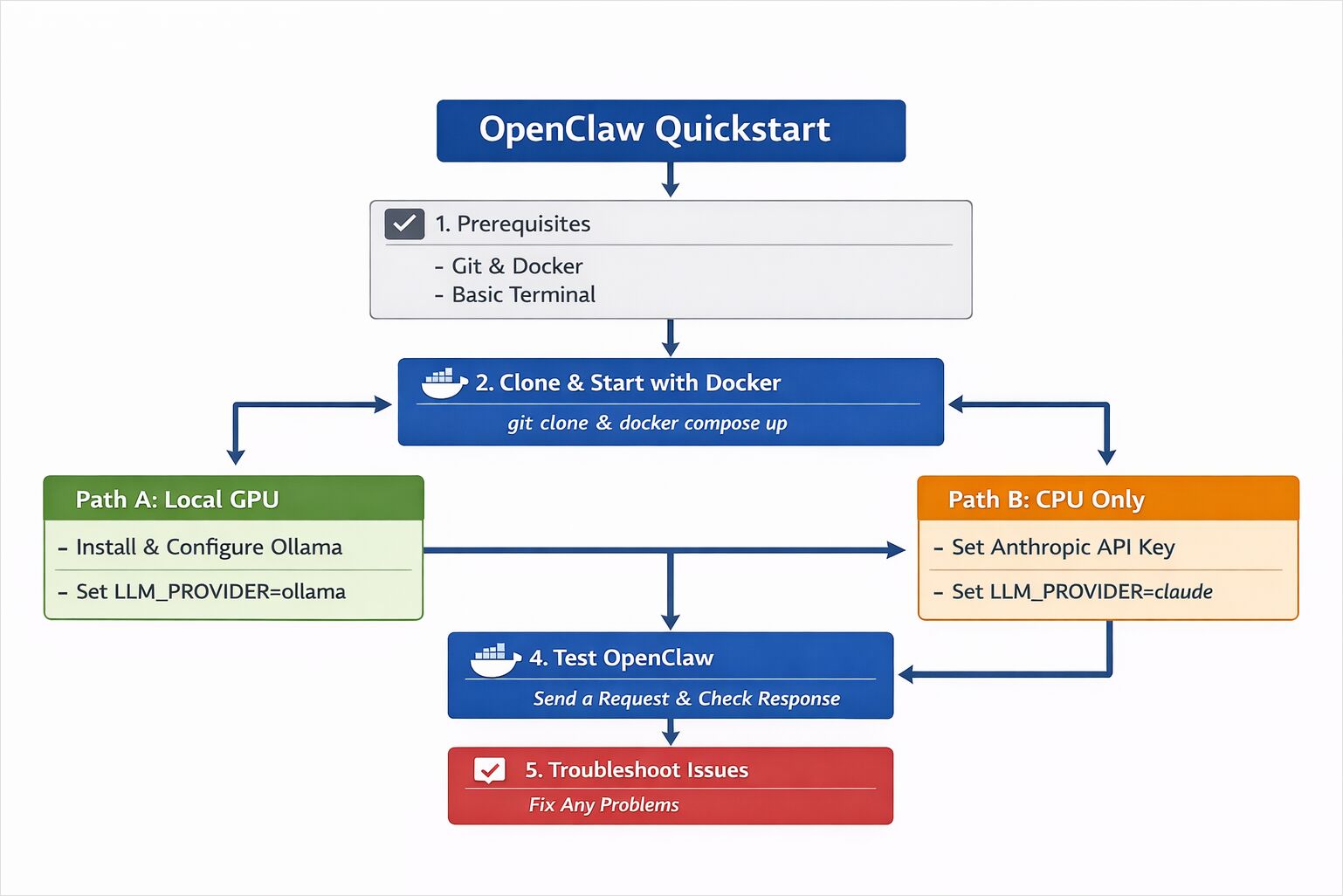
This quickstart shows how to deploy OpenClaw using Docker, configure either a GPU-powered local model or a CPU-only cloud model, and verify that your AI assistant is working end-to-end.
This guide walks through a minimal setup of OpenClaw so you can see it running and responding on your own machine.
The goal is simple:
- Get OpenClaw running.
- Send a request.
- Confirm that it works.
This is not a production hardening guide.
This is not a performance tuning guide.
This is a practical starting point.
You have two options:
- Path A — Local GPU using Ollama (recommended if you have a GPU)
- Path B — CPU-only using Claude Sonnet 4.6 via Anthropic API
Both paths share the same core installation process.
If you’re new to OpenClaw and want a deeper overview of how the system is structured read the OpenClaw system overview.
System Requirements and Environment Setup
OpenClaw is an assistant-style system that can connect to external services. For this Quickstart:
- Use test accounts where possible.
- Avoid connecting sensitive production systems.
- Run it inside Docker (recommended).
Isolation is a good default when experimenting with agent-style software.
OpenClaw Prerequisites (GPU with Ollama or CPU with Claude)
Required for Both Paths
- Git
- Docker Desktop (or Docker + Docker Compose)
- A terminal
For Path A (Local GPU)
- A machine with a compatible GPU (NVIDIA or AMD recommended)
- Ollama installed
For Path B (CPU + Cloud Model)
- An Anthropic API key
- Access to Claude Sonnet 4.6
Step 1 — Install OpenClaw with Docker (Clone & Start)
OpenClaw can be started using Docker Compose. This keeps the setup contained and reproducible.
Clone the repository
git clone https://github.com/openclaw/openclaw.git
cd openclaw
Copy environment configuration
cp .env.example .env
Open .env in your editor. We will configure it in the next step
depending on which model path you choose.
Start the containers
docker compose up -d
If everything starts correctly, you should see containers running:
docker ps
At this stage, OpenClaw is running — but it is not yet connected to a model.
Step 2 — Configure LLM Provider (Ollama GPU or Claude CPU)
Now decide how you want inference to work.
Path A — Local GPU with Ollama
If you have a GPU available, this is the simplest and most self-contained option.
Install or Verify Ollama
If you need a more detailed installation guide or want to configure model storage locations, see:
- Install Ollama and Configure Models Location
- Ollama CLI Cheatsheet: ls, serve, run, ps + other commands (2026 update)
If Ollama is not installed:
curl -fsSL https://ollama.com/install.sh | sh
Verify it works:
ollama pull llama3
ollama run llama3
If the model responds, inference is working.
Configure OpenClaw to Use Ollama
In your .env file, configure:
LLM_PROVIDER=ollama
OLLAMA_BASE_URL=http://host.docker.internal:11434
OLLAMA_MODEL=llama3
Restart the containers:
docker compose restart
OpenClaw will now route requests to your local Ollama instance.
If you’re deciding which model to run on a 16GB GPU or want benchmark comparisons, see:
To understand concurrency and CPU behavior under load:
- How Ollama Handles Parallel Requests
- Test: How Ollama is using Intel CPU Performance and Efficient Cores
Path B — CPU-Only Using Claude Sonnet 4.6
If you do not have a GPU, you can use a hosted model.
Add Your API Key
In your .env file:
LLM_PROVIDER=anthropic
ANTHROPIC_API_KEY=your_api_key_here
ANTHROPIC_MODEL=claude-sonnet-4-6
Restart:
docker compose restart
OpenClaw will now use Claude Sonnet 4.6 for inference while the orchestration runs locally.
This setup works well on CPU-only machines because the heavy model computation happens in the cloud.
Step 3 — Test OpenClaw with Your First Prompt
Once the containers are running and the model is configured, you can test the assistant.
Depending on your setup, this may be through:
- A web interface
- A messaging integration
- A local API endpoint
For a basic API test:
curl http://localhost:3000/health
You should see a healthy status response.
Now send a simple prompt:
curl -X POST http://localhost:3000/chat -H "Content-Type: application/json" -d '{"message": "Explain what OpenClaw does in simple terms."}'
If you receive a structured response, the system is working.
What You Just Ran
At this point, you have:
- A running OpenClaw instance
- A configured LLM provider (local or cloud)
- A working request-response loop
If you chose the GPU path, inference happens locally via Ollama.
If you chose the CPU path, inference happens via Claude Sonnet 4.6, while orchestration, routing, and memory handling run inside your local Docker containers.
The visible interaction may look simple. Underneath, multiple components coordinate to process your request.
Troubleshooting OpenClaw Installation and Runtime Issues
Model Not Responding
- Verify your
.envconfiguration. - Check container logs:
docker compose logs
Ollama Not Reachable
- Confirm Ollama is running:
ollama list
- Ensure the base URL matches your environment.
Invalid API Key
- Double-check
ANTHROPIC_API_KEY - Restart containers after updating
.env
GPU Not Being Used
- Confirm GPU drivers are installed.
- Ensure Docker has GPU access enabled.
Next Steps After Installing OpenClaw
You now have a working OpenClaw instance.
From here, you can:
- Connect messaging platforms
- Enable document retrieval
- Experiment with routing strategies
- Add observability and metrics
- Tune performance and cost behavior
The deeper architectural discussions make more sense once the system is running.
Getting it operational is the first step.
