
Best Linux Terminal Emulators: 2026 Comparison
Choose the right terminal for your Linux workflow
One of the most essential tools for Linux users is the terminal emulator.
For all tasks - managing servers, writing code, or performing system maintenance, choosing the right terminal can significantly impact productivity and workflow efficiency.
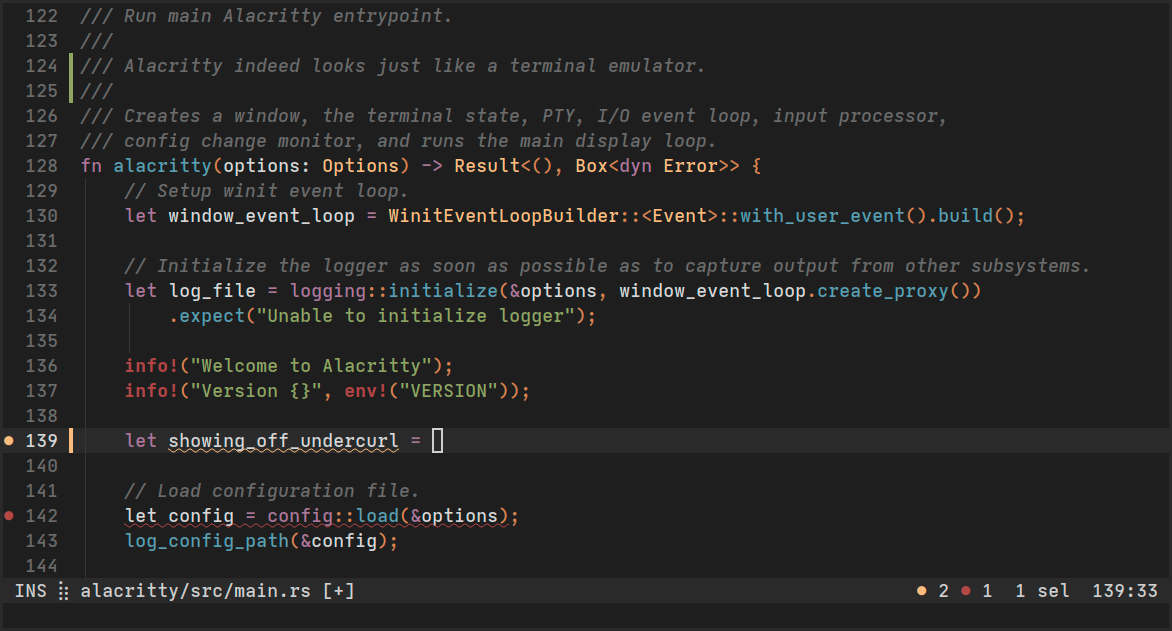
Understanding Terminal Emulators
A terminal emulator is a program that emulates a video terminal within your graphical user interface, allowing you to interact with the shell. While the terms “terminal” and “shell” are often used interchangeably, the terminal is the interface, while the shell (like Bash or Zsh) is the command-line interpreter running inside it. If you’re working extensively with Bash, you might find our Bash Cheat Sheet helpful for quick command references. For a complete overview of essential development tools, see our guide to Developer Tools: The Complete Guide to Modern Development Workflows.
Modern terminal emulators have evolved far beyond simple text display. They now offer features like GPU acceleration, ligature support, true color display, split panes, tabs, extensive customization, and much more. The choice of terminal emulator can affect everything from rendering speed to your overall workflow organization.
Traditional Terminal Emulators
GNOME Terminal
GNOME Terminal is the default terminal emulator for GNOME desktop environments, making it one of the most widely used terminals in the Linux ecosystem. It offers a balanced set of features without overwhelming complexity.
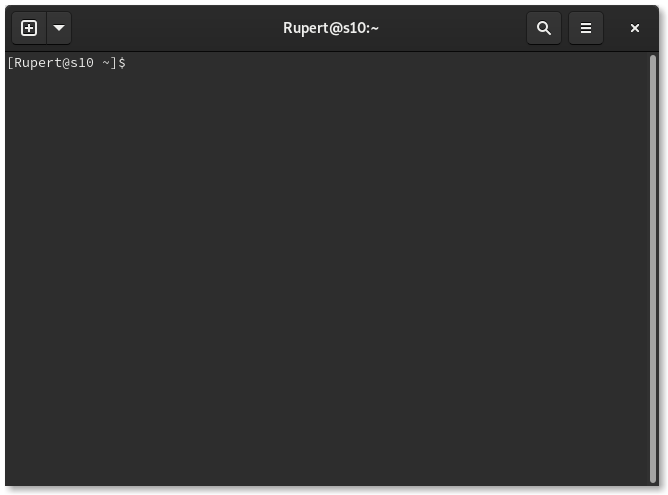
Key Features:
- Multiple tabs support
- Profile management for different use cases
- Transparent backgrounds and color schemes
- VTE-based (Virtual Terminal Emulator library)
- Good accessibility support
- Integration with GNOME desktop
Best For: Ubuntu, Fedora, and other GNOME-based distribution users who want a reliable, well-integrated terminal without additional setup.
Konsole
Konsole is KDE’s terminal emulator, offering deep integration with the Plasma desktop environment. It’s feature-rich and provides excellent customization through its graphical interface.
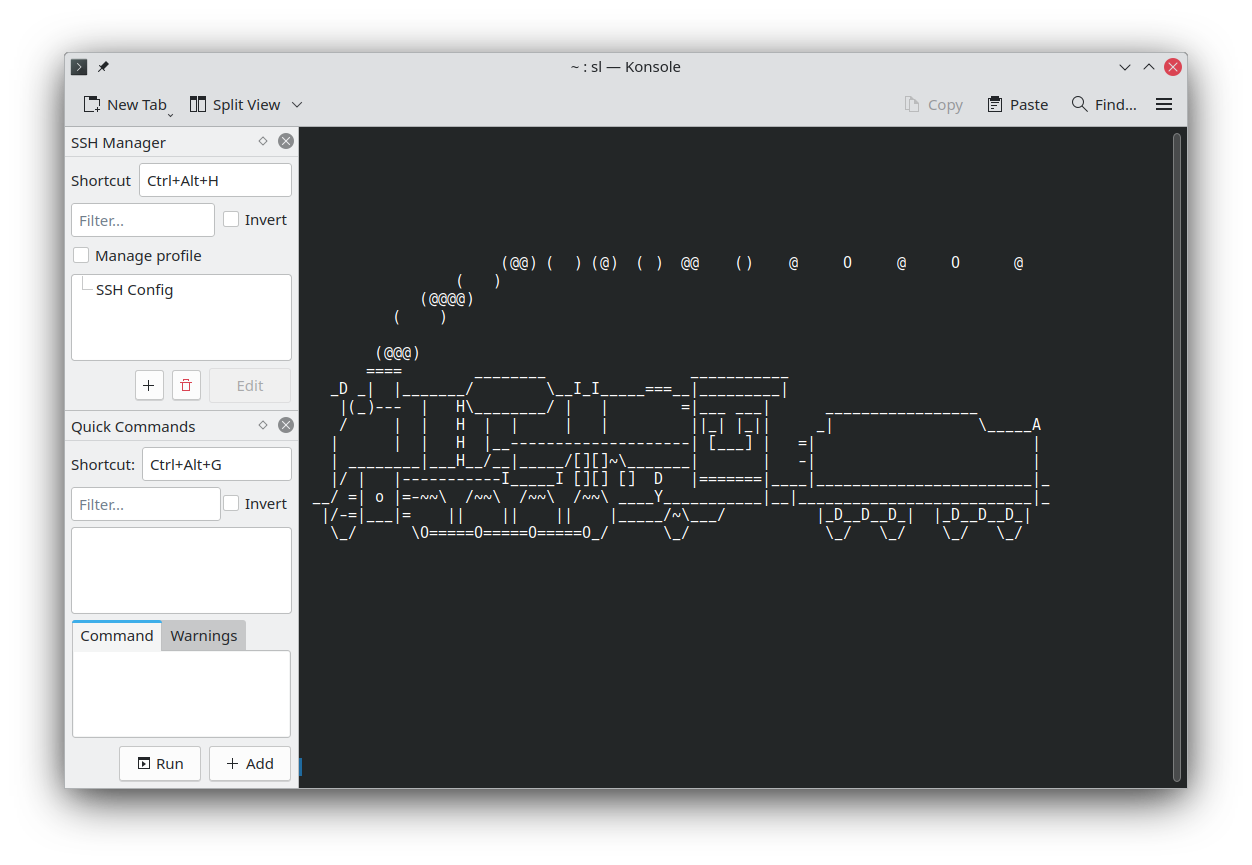
Key Features:
- Split view functionality (horizontal and vertical)
- Extensive profile and appearance customization
- Bookmark support for directories
- Monitor for silence/activity in terminals
- Export output to various formats
- Built-in search functionality
Best For: KDE Plasma users and those who prefer GUI-based configuration over editing text files.
xterm
The grandfather of terminal emulators, xterm has been around since 1984. While it lacks modern features, it’s lightweight, stable, and available on virtually every Unix-like system.
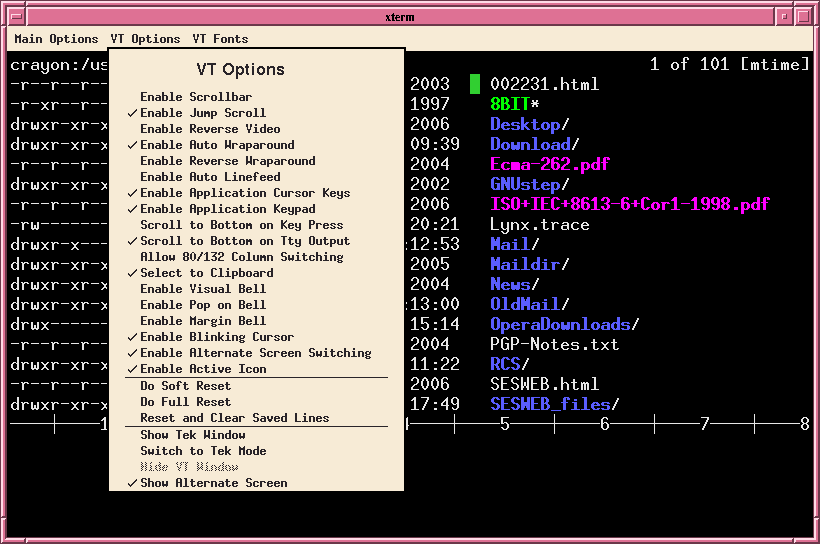
Key Features:
- Extremely lightweight and fast
- Minimal resource usage
- High compatibility
- Tektronix 4014 graphics support
Best For: Minimal systems, embedded devices, or users who need maximum compatibility and minimal overhead.
Modern GPU-Accelerated Terminals
GPU acceleration represents a paradigm shift in terminal emulator performance. By leveraging your graphics card for rendering text, these terminals can handle massive outputs, smooth scrolling, and multiple simultaneous sessions without lag.
Alacritty
Alacritty bills itself as the fastest terminal emulator in existence, and it lives up to that claim. Written in Rust and using GPU acceleration via OpenGL, it focuses purely on performance and simplicity.
Key Features:
- GPU-accelerated rendering with OpenGL
- Cross-platform (Linux, macOS, Windows, BSD)
- No tabs or splits (by design - use tmux instead)
- Configuration via YAML file
- True color and wide character support
- Excellent scrollback performance
Configuration Example:
# ~/.config/alacritty/alacritty.yml
window:
  padding:
    x: 10
    y: 10
  opacity: 0.95

font:
  normal:
    family: JetBrains Mono
  size: 12.0

colors:
  primary:
    background: '0x1e1e1e'
    foreground: '0xd4d4d4'
Best For: Users who prioritize performance above all else and are comfortable using tmux or other multiplexers for window management. Alacritty’s GPU-accelerated rendering makes it especially efficient when you need to monitor GPU performance with specialized Linux applications.
Kitty
Kitty is a feature-rich, GPU-accelerated terminal emulator written in C and Python. It strikes an excellent balance between performance and functionality, offering many built-in features that Alacritty deliberately omits.
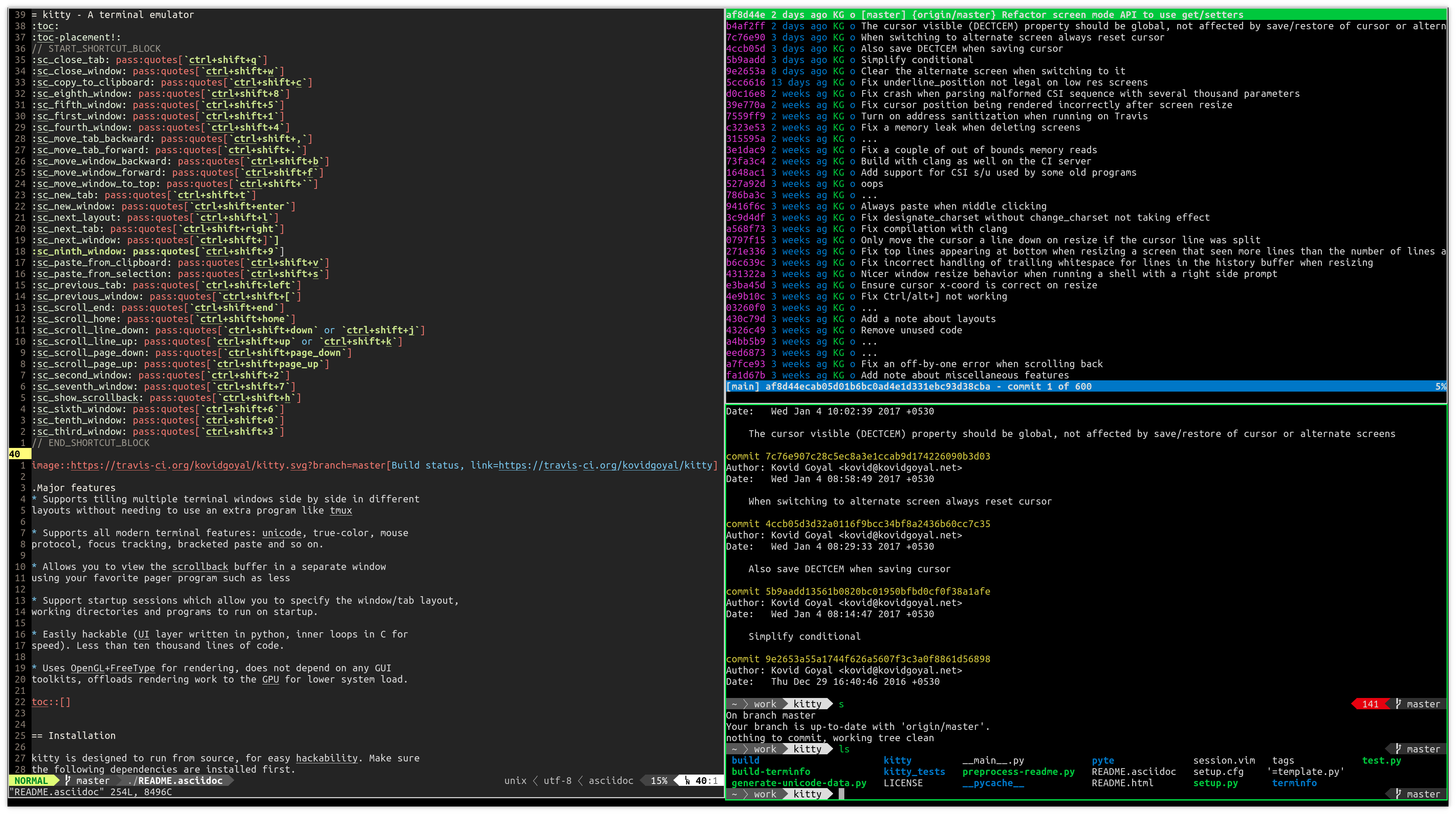
Key Features:
- GPU acceleration with OpenGL
- Built-in tabs and window splitting
- Ligature support for programming fonts
- Image display protocol for viewing images in terminal
- Extensive keyboard-driven control
- Remote control via command-line interface
- Session management and layout persistence
Configuration Example:
# ~/.config/kitty/kitty.conf
font_family      JetBrains Mono
font_size        12.0

background_opacity 0.95
window_padding_width 10

# Tabs
tab_bar_style powerline
tab_powerline_style round

# Splits
map ctrl+shift+- split_window horizontal
map ctrl+shift+\ split_window vertical
Best For: Users who want GPU-accelerated performance with built-in window management features, developers who benefit from ligatures and image display, and those who prefer a comprehensive all-in-one solution.
WezTerm
WezTerm is a newer entry in the GPU-accelerated terminal space, written in Rust. It offers extensive customization through Lua scripting and aims to provide a battery-included experience.
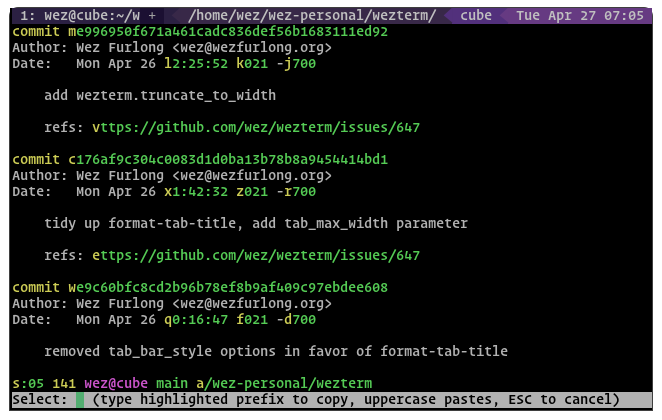
Key Features:
- GPU acceleration with multiple backend options
- Built-in multiplexer (tabs, panes, windows)
- Lua-based configuration for advanced customization
- Native SSH client integration
- Hyperlink support (clickable URLs)
- Extensive Unicode and emoji support
- Cross-platform with consistent behavior
Configuration Example:
-- ~/.config/wezterm/wezterm.lua
local wezterm = require 'wezterm'

return {
  font = wezterm.font('JetBrains Mono'),
  font_size = 12.0,
  color_scheme = 'Dracula',

  window_background_opacity = 0.95,

  keys = {
    {key="n", mods="SHIFT|CTRL", action="ToggleFullScreen"},
    {key="-", mods="CTRL", action=wezterm.action{SplitVertical={domain="CurrentPaneDomain"}}},
  },
}
Best For: Power users who want maximum flexibility through Lua scripting, those who frequently SSH into remote systems, and users who want a modern terminal with excellent documentation.
Terminals Specialized for Tiling
Tilix
Formerly known as Terminix, Tilix is designed specifically for tiling terminal windows. It allows you to arrange multiple terminal sessions in a grid layout within a single window.
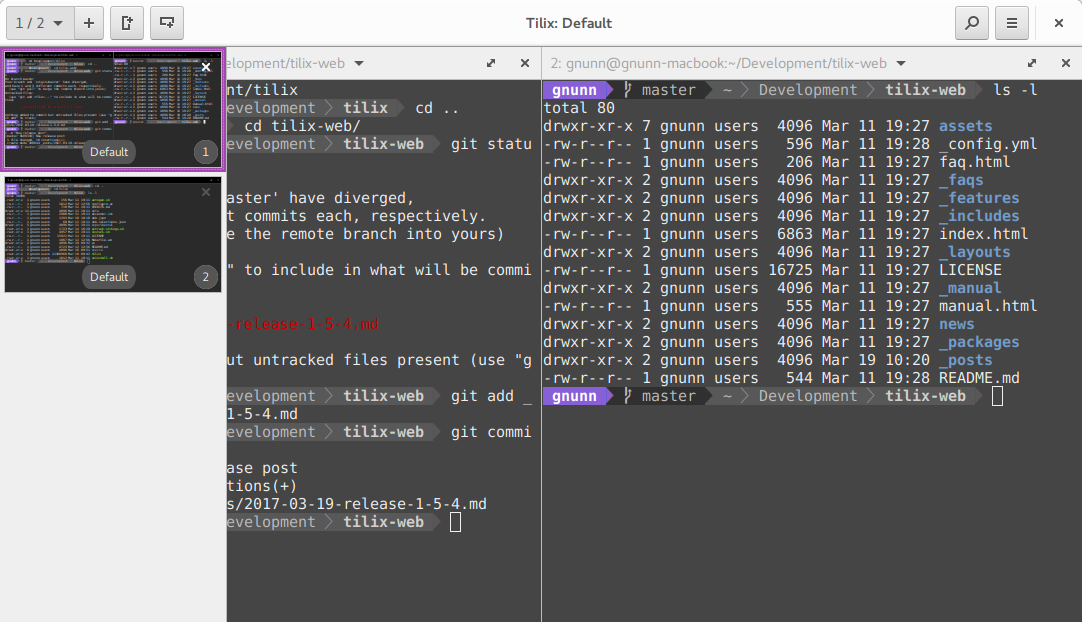
Key Features:
- Advanced tiling capabilities
- Custom layouts that can be saved
- Drag and drop terminal rearrangement
- Quake-style dropdown mode
- VTE-based with good compatibility
Best For: Users who regularly work with multiple terminal sessions simultaneously and prefer visual organization over terminal multiplexers like tmux. For automated startup configurations, see how to start terminal windows tiled in Linux.
Terminator
Terminator is another terminal focused on providing multiple terminals in a single window through splitting and tabbing. It’s highly customizable and supports layouts.
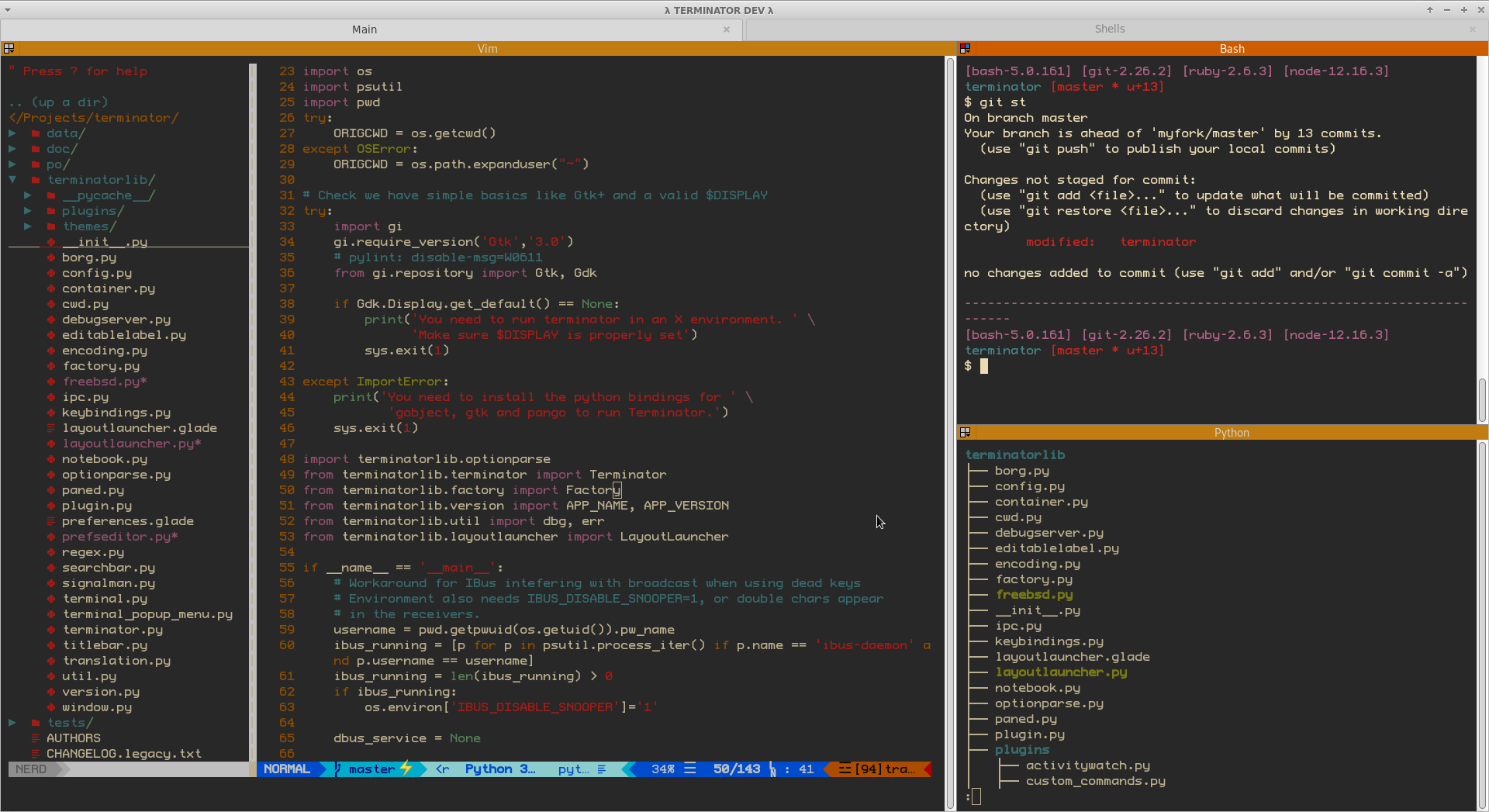
Key Features:
- Flexible splitting (horizontal and vertical)
- Grouping and broadcasting to multiple terminals
- Custom layouts
- Plugin support
- Drag and drop rearrangement
Best For: System administrators managing multiple servers or developers running multiple processes who want a visual approach to terminal organization.
Performance Considerations
When comparing terminal emulator performance, several factors come into play. GPU-accelerated terminals like Alacritty, Kitty, and WezTerm significantly outperform traditional terminals when dealing with:
- Large output dumps (log files, build output)
- Fast-scrolling text
- Multiple simultaneous terminal sessions
- High-resolution displays
Traditional terminals like GNOME Terminal and Konsole can experience lag when handling massive outputs or when running many instances simultaneously. However, for typical daily use, the performance difference may not be noticeable.
The GPU acceleration advantage becomes particularly evident when working with development workflows that generate substantial terminal output or when using terminals on systems with dedicated graphics cards.
Configuration and Customization
The approach to customization varies significantly across terminal emulators:
File-Based Configuration (Alacritty, Kitty, WezTerm): These terminals use configuration files (YAML, conf, or Lua), allowing version control and easy backup. This approach requires learning the configuration syntax but offers programmatic customization.
GUI-Based Configuration (GNOME Terminal, Konsole): These provide graphical interfaces for customization, making them more accessible to new users but harder to version control or share configurations.
Hybrid Approach (Tilix): Offers both GUI configuration and the ability to export/import settings.
Most modern terminals support similar customization options including fonts, color schemes, transparency, padding, and keyboard shortcuts. The differences lie primarily in how you access and modify these settings. For Windows users, the PowerShell Cheatsheet provides a complementary resource for terminal-based workflows. On Ubuntu 24, you can also configure desktop launchers with standard icons to easily access your preferred terminal from the desktop or applications menu.
Integration with Desktop Environments
Terminal emulator integration with your desktop environment affects the overall user experience. When working with various Linux installations and configurations, this integration becomes important. The choice between Wayland and X11 display servers can also impact terminal behavior, particularly for features like copy-paste, window decorations, and GPU acceleration.
GNOME Terminal integrates seamlessly with GNOME, inheriting system themes and respecting desktop settings. Similarly, Konsole provides tight integration with KDE Plasma.
GPU-accelerated terminals like Alacritty, Kitty, and WezTerm are desktop-agnostic, providing consistent behavior across different environments but potentially requiring more manual configuration to match your system theme.
Choosing Your Terminal Emulator
Your ideal terminal emulator depends on your specific needs:
For Maximum Performance: Choose Alacritty or Kitty. Both offer exceptional speed through GPU acceleration. Alacritty is simpler and focuses purely on terminal emulation, while Kitty includes built-in features for window management. For running long-running processes, you might also want to configure executables as Linux services.
For Feature-Rich Experience: WezTerm or Kitty provide comprehensive features including tabs, splits, and extensive customization while maintaining good performance.
For Tiling Workflows: Tilix or Terminator specialize in visual tile management, ideal for users who prefer GUI-based window arrangement over terminal multiplexers.
For Desktop Integration: Stick with your desktop’s default terminal (GNOME Terminal for GNOME, Konsole for KDE) for seamless integration and familiar configuration interfaces.
For Scripting and Automation: WezTerm’s Lua configuration offers the most powerful scripting capabilities, while Kitty provides remote control via command-line interface. This is particularly useful when you need to configure network settings remotely on Ubuntu servers.
Terminal Multiplexers: An Alternative Approach
It’s worth noting that terminal multiplexers like tmux and GNU Screen offer an alternative to built-in terminal splitting and tabbing. These tools run inside any terminal emulator and provide session management, detachable sessions, and their own split-pane functionality.
Many users, particularly those using Alacritty, prefer combining a fast, simple terminal emulator with tmux rather than relying on built-in terminal features. This approach offers:
- Session persistence across SSH disconnections
- Ability to detach and reattach sessions
- Consistent workflow across different systems
- Powerful scripting and automation
The combination of a fast terminal and tmux can significantly enhance your development workflow, especially when you customize your bash prompt to display git branch and status information.
Installation and Getting Started
Most terminal emulators are available in standard Linux repositories. If you’re setting up Ubuntu 24.04 or reinstalling Linux Mint, you can install multiple terminal emulators to experiment. First, check your Ubuntu version to ensure compatibility with the terminal emulator you want to install:
# Ubuntu/Debian
sudo apt install alacritty kitty tilix terminator

# Fedora
sudo dnf install alacritty kitty tilix terminator

# Arch
sudo pacman -S alacritty kitty tilix terminator
WezTerm typically requires adding a repository or downloading from GitHub releases:
# Ubuntu/Debian - add repository
curl -fsSL https://apt.fury.io/wez/gpg.key | sudo gpg --yes --dearmor -o /usr/share/keyrings/wezterm-fury.gpg
echo 'deb [signed-by=/usr/share/keyrings/wezterm-fury.gpg] https://apt.fury.io/wez/ * *' | sudo tee /etc/apt/sources.list.d/wezterm.list
sudo apt update
sudo apt install wezterm
After installation, configure your terminal by editing its configuration file (usually in ~/.config/terminal-name/) or through its GUI settings.
Conclusion
The Linux terminal emulator landscape offers options for every use case and preference. Traditional terminals like GNOME Terminal and Konsole remain excellent choices for most users, providing reliability and desktop integration. GPU-accelerated alternatives like Alacritty, Kitty, and WezTerm represent the future of terminal emulation, offering exceptional performance for demanding workflows.
For system administrators managing multiple servers or developers with complex workflows, specialized tiling terminals like Tilix provide visual organization tools. Meanwhile, minimalists might appreciate Alacritty’s focused approach combined with tmux for session management. If you encounter network issues after system updates, see how to fix Ubuntu network problems after kernel upgrades.
The best terminal emulator is ultimately the one that fits your workflow and preferences. Most are free and open source, so experimenting with several options costs nothing but time. Start with your distribution’s default, and if you encounter performance issues or find yourself wanting specific features, explore the alternatives discussed in this guide. For users who prefer GUI-based file management alongside their terminal workflows, comparing file managers like Nautilus, Nemo, Dolphin, and Caja can help you choose the right tools for your Linux setup.
Related Articles
- Bash Cheat Sheet
- Show Git Branch & Status in Bash Prompt
- How to start terminal windows tiled linux mint ubuntu
- How to Install Ubuntu 24.04 & useful tools
- GPU monitoring applications in Linux / Ubuntu
- How to Change a Static IP Address in Ubuntu Server
- Reinstall linux Mint
