
Playwright: Web Scraping & Testing
Master browser automation for testing & scraping
Playwright is a powerful, modern browser automation framework that revolutionizes web scraping and end-to-end testing.
Developed by Microsoft, it provides a unified API for automating Chromium, Firefox, and WebKit browsers with unprecedented reliability and speed.
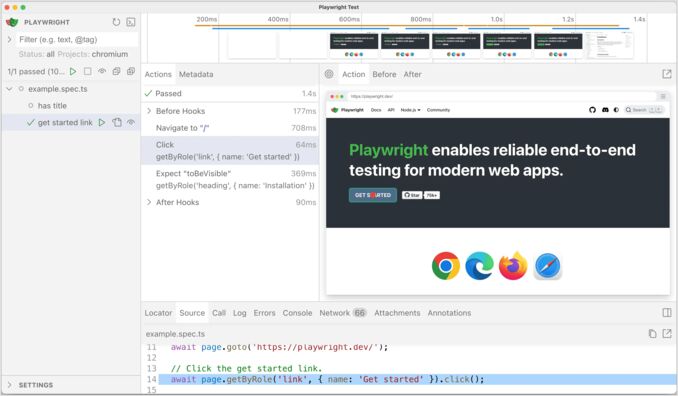
What is Playwright?
Playwright is an open-source browser automation framework that enables developers to write reliable end-to-end tests and build sophisticated web scraping solutions. Unlike traditional automation tools, Playwright was built from the ground up to handle modern web applications with dynamic content, single-page applications (SPAs), and complex JavaScript frameworks.
The framework addresses the core problem that plagued previous automation tools: flakiness. Playwright introduces auto-waiting mechanisms that automatically wait for elements to be actionable before performing operations, eliminating the need for arbitrary timeouts and sleep statements that made tests unreliable.
Key Features
Cross-Browser Support: Playwright supports all major browser engines - Chromium (including Chrome and Edge), Firefox, and WebKit (Safari). This means you can write your automation script once and run it across different browsers without modification, ensuring your web applications work consistently everywhere.
Auto-Waiting: One of Playwright’s most powerful features is its built-in auto-waiting mechanism. Before performing any action, Playwright automatically waits for elements to be visible, enabled, stable, and not obscured. This eliminates race conditions and makes tests dramatically more reliable compared to tools like Selenium where explicit waits are often necessary.
Network Interception: Playwright allows you to intercept, modify, and mock network requests and responses. This is invaluable for testing edge cases, simulating slow networks, blocking unnecessary resources during scraping, or mocking API responses without needing a backend.
Mobile Emulation: Test mobile web applications by emulating various mobile devices with specific viewport sizes, user agents, and touch events. Playwright includes device descriptors for popular phones and tablets.
Powerful Selectors: Beyond CSS and XPath selectors, Playwright supports text selectors, role-based selectors for accessibility testing, and even experimental React and Vue selectors for component-based frameworks.
Installation and Setup
Setting up Playwright is straightforward across different programming languages.
Python Installation
For Python projects, Playwright can be installed via pip and includes both synchronous and asynchronous APIs. If you’re looking for a faster, more modern Python package manager, check out our guide on uv - Python Package, Project, and Environment Manager:
# Install Playwright package
pip install playwright

# Install browsers (Chromium, Firefox, WebKit)
playwright install

# For specific browser only
playwright install chromium
For a comprehensive reference of Python syntax and commonly used commands while working with Playwright, refer to our Python Cheatsheet.
JavaScript/TypeScript Installation
For Node.js projects, install Playwright via npm or yarn:
# Using npm
npm init playwright@latest

# Using yarn
yarn create playwright

# Manual installation
npm install -D @playwright/test
npx playwright install
The npm init playwright command provides an interactive setup that configures your project with example tests, configuration files, and GitHub Actions workflow.
Basic Configuration
Create a playwright.config.ts (TypeScript) or playwright.config.js (JavaScript) file:
import { defineConfig, devices } from '@playwright/test';

export default defineConfig({
  testDir: './tests',
  timeout: 30000,
  retries: 2,
  workers: 4,
  use: {
    headless: true,
    viewport: { width: 1280, height: 720 },
    screenshot: 'only-on-failure',
    video: 'retain-on-failure',
  },
  projects: [
    {
      name: 'chromium',
      use: { ...devices['Desktop Chrome'] },
    },
    {
      name: 'firefox',
      use: { ...devices['Desktop Firefox'] },
    },
    {
      name: 'webkit',
      use: { ...devices['Desktop Safari'] },
    },
  ],
});
Web Scraping with Playwright
Playwright excels at web scraping, especially for modern websites with dynamic content that traditional scraping libraries struggle with.
Basic Scraping Example
Here’s a comprehensive Python example demonstrating core scraping concepts:
from playwright.sync_api import sync_playwright
import json

def scrape_website():
    with sync_playwright() as p:
        # Launch browser
        browser = p.chromium.launch(headless=True)

        # Create context for isolation
        context = browser.new_context(
            viewport={'width': 1920, 'height': 1080},
            user_agent='Mozilla/5.0 (Windows NT 10.0; Win64; x64)'
        )

        # Open new page
        page = context.new_page()

        # Navigate to URL
        page.goto('https://example.com/products')

        # Wait for content to load
        page.wait_for_selector('.product-item')

        # Extract data
        products = page.query_selector_all('.product-item')

        data = []
        for product in products:
            title = product.query_selector('h2').inner_text()
            price = product.query_selector('.price').inner_text()
            url = product.query_selector('a').get_attribute('href')

            data.append({
                'title': title,
                'price': price,
                'url': url
            })

        # Clean up
        browser.close()

        return data

# Run scraper
results = scrape_website()
print(json.dumps(results, indent=2))
Handling Dynamic Content
Modern websites often load content dynamically via JavaScript. Playwright handles this seamlessly:
async def scrape_dynamic_content():
    async with async_playwright() as p:
        browser = await p.chromium.launch()
        page = await browser.new_page()

        await page.goto('https://example.com/infinite-scroll')

        # Scroll to load more content
        for _ in range(5):
            await page.evaluate('window.scrollTo(0, document.body.scrollHeight)')
            await page.wait_for_timeout(2000)

        # Wait for network to be idle
        await page.wait_for_load_state('networkidle')

        # Extract all loaded items
        items = await page.query_selector_all('.item')

        await browser.close()
Converting Scraped Content to Markdown
After extracting HTML content with Playwright, you often need to convert it to a more usable format. For comprehensive guides on converting HTML to Markdown, see our articles on Converting HTML to Markdown with Python: A Comprehensive Guide which compares 6 different Python libraries, and Convert HTML content to Markdown using LLM and Ollama for AI-powered conversion. If you’re working with Word documents instead, check out our guide on Converting Word Documents to Markdown.
Authentication and Session Management
When scraping requires authentication, Playwright makes it easy to save and reuse browser state:
def login_and_save_session():
    with sync_playwright() as p:
        browser = p.chromium.launch(headless=False)
        context = browser.new_context()
        page = context.new_page()

        # Login
        page.goto('https://example.com/login')
        page.fill('input[name="username"]', 'your_username')
        page.fill('input[name="password"]', 'your_password')
        page.click('button[type="submit"]')

        # Wait for navigation after login
        page.wait_for_url('**/dashboard')

        # Save authenticated state
        context.storage_state(path='auth_state.json')

        browser.close()

def scrape_with_saved_session():
    with sync_playwright() as p:
        browser = p.chromium.launch()
        # Reuse saved authentication state
        context = browser.new_context(storage_state='auth_state.json')
        page = context.new_page()

        # Already authenticated!
        page.goto('https://example.com/protected-data')
        # ... scrape protected content

        browser.close()
This approach is particularly useful when working with APIs or building MCP servers for AI integrations. For a complete guide on implementing web scraping in AI tool integration, see our article on Building MCP Servers in Python: WebSearch & Scrape.
End-to-End Testing
Playwright’s primary use case is writing robust end-to-end tests for web applications.
Writing Your First Test
Here’s a complete test example in TypeScript:
import { test, expect } from '@playwright/test';

test('user can add item to cart', async ({ page }) => {
  // Navigate to homepage
  await page.goto('https://example-shop.com');

  // Search for product
  await page.fill('[data-testid="search-input"]', 'laptop');
  await page.press('[data-testid="search-input"]', 'Enter');

  // Wait for search results
  await expect(page.locator('.product-card')).toBeVisible();

  // Click first product
  await page.locator('.product-card').first().click();

  // Verify product page loaded
  await expect(page).toHaveURL(/\/product\/.+/);

  // Add to cart
  await page.click('[data-testid="add-to-cart"]');

  // Verify cart updated
  const cartCount = page.locator('[data-testid="cart-count"]');
  await expect(cartCount).toHaveText('1');
});
Page Object Model
For larger test suites, use the Page Object Model pattern to improve maintainability:
// pages/LoginPage.ts
export class LoginPage {
  constructor(private page: Page) {}

  async navigate() {
    await this.page.goto('/login');
  }

  async login(username: string, password: string) {
    await this.page.fill('[name="username"]', username);
    await this.page.fill('[name="password"]', password);
    await this.page.click('button[type="submit"]');
  }

  async getErrorMessage() {
    return await this.page.locator('.error-message').textContent();
  }
}

// tests/login.spec.ts
import { test, expect } from '@playwright/test';
import { LoginPage } from '../pages/LoginPage';

test('login with invalid credentials shows error', async ({ page }) => {
  const loginPage = new LoginPage(page);
  await loginPage.navigate();
  await loginPage.login('invalid@email.com', 'wrongpass');

  const error = await loginPage.getErrorMessage();
  expect(error).toContain('Invalid credentials');
});
Advanced Features
Codegen - Automatic Test Generation
Playwright’s Codegen tool generates tests by recording your interactions with a web page:
# Open Codegen
playwright codegen example.com

# With specific browser
playwright codegen --browser firefox example.com

# With saved authentication state
playwright codegen --load-storage=auth.json example.com
As you interact with the page, Codegen generates code in real-time. This is incredibly useful for quickly prototyping tests or learning Playwright’s selector syntax.
Trace Viewer for Debugging
When tests fail, understanding why can be challenging. Playwright’s Trace Viewer provides a timeline view of your test execution:
// Enable tracing in config
use: {
  trace: 'on-first-retry',
}
After a test fails and retries, view the trace:
playwright show-trace trace.zip
The Trace Viewer shows screenshots at every action, network activity, console logs, and DOM snapshots, making debugging straightforward.
Network Interception and Mocking
Intercept and modify network traffic for testing edge cases:
def test_with_mocked_api():
    with sync_playwright() as p:
        browser = p.chromium.launch()
        page = browser.new_page()

        # Mock API response
        def handle_route(route):
            if 'api/products' in route.request.url:
                route.fulfill(
                    status=200,
                    body=json.dumps({
                        'products': [
                            {'id': 1, 'name': 'Test Product', 'price': 99.99}
                        ]
                    })
                )
            else:
                route.continue_()

        page.route('**/*', handle_route)

        page.goto('https://example.com')
        # Page now uses mocked data

        browser.close()
Mobile Testing
Test your responsive designs on various devices:
from playwright.sync_api import sync_playwright

def test_mobile():
    with sync_playwright() as p:
        # Use device descriptor
        iphone_13 = p.devices['iPhone 13']

        browser = p.webkit.launch()
        context = browser.new_context(**iphone_13)
        page = context.new_page()

        page.goto('https://example.com')

        # Interact as mobile user
        page.locator('#mobile-menu-button').click()

        browser.close()
Best Practices
For Web Scraping
- Use Headless Mode in Production: Headless browsing is faster and uses fewer resources
- Implement Rate Limiting: Respect target websites with delays between requests
- Handle Errors Gracefully: Network issues, timeouts, and selector changes happen
- Rotate User Agents: Avoid detection by varying browser fingerprints
- Respect robots.txt: Check and follow website scraping policies
- Use Context Isolation: Create separate browser contexts for parallel scraping
When converting scraped content to markdown format, consider leveraging LLM-based conversion tools or Python libraries specialized for HTML-to-Markdown conversion for cleaner output.
For Testing
- Use Data-testid Attributes: More stable than CSS classes which change frequently
- Avoid Hard Waits: Use Playwright’s built-in waiting mechanisms instead of
sleep() - Keep Tests Independent: Each test should be able to run in isolation
- Use Fixtures: Share setup code between tests efficiently
- Run Tests in Parallel: Leverage Playwright’s worker threads for speed
- Record Traces on Failure: Enable trace recording for easier debugging
Performance Optimization
# Disable unnecessary resources
def fast_scraping():
    with sync_playwright() as p:
        browser = p.chromium.launch()
        context = browser.new_context()
        page = context.new_page()

        # Block images and stylesheets to speed up scraping
        async def block_resources(route):
            if route.request.resource_type in ['image', 'stylesheet', 'font']:
                await route.abort()
            else:
                await route.continue_()

        page.route('**/*', block_resources)
        page.goto('https://example.com')

        browser.close()
Comparing Playwright with Alternatives
Playwright vs Selenium
Playwright Advantages:
- Built-in auto-waiting eliminates flaky tests
- Faster execution due to modern architecture
- Better network interception and mocking
- Superior debugging tools (Trace Viewer)
- Simpler API with less boilerplate
- Multiple browsers with single installation
Selenium Advantages:
- More mature ecosystem with extensive community
- Supports more programming languages
- Wider browser compatibility including older versions
Playwright vs Puppeteer
Playwright Advantages:
- True cross-browser support (Firefox, WebKit, Chromium)
- Better API design based on Puppeteer lessons
- More powerful debugging tools
- Microsoft backing and active development
Puppeteer Advantages:
- Slightly smaller footprint
- Chrome DevTools Protocol expertise
For most new projects, Playwright is the recommended choice due to its modern architecture and comprehensive feature set. If you’re working with Go instead of Python or JavaScript and need web scraping capabilities, check out our guide on Beautiful Soup Alternatives for Go for comparable scraping tools in the Go ecosystem.
Common Use Cases
Data Extraction for AI/LLM Applications
Playwright is excellent for gathering training data or creating web search capabilities for AI models. When building MCP (Model Context Protocol) servers, Playwright can handle the web scraping component while LLMs process the extracted content.
Automated Testing in CI/CD
Integrate Playwright tests into your continuous integration pipeline:
# .github/workflows/playwright.yml
name: Playwright Tests
on:
  push:
    branches: [ main, master ]
  pull_request:
    branches: [ main, master ]
jobs:
  test:
    timeout-minutes: 60
    runs-on: ubuntu-latest
    steps:
    - uses: actions/checkout@v3
    - uses: actions/setup-node@v3
      with:
        node-version: 18
    - name: Install dependencies
      run: npm ci
    - name: Install Playwright Browsers
      run: npx playwright install --with-deps
    - name: Run Playwright tests
      run: npx playwright test
    - uses: actions/upload-artifact@v3
      if: always()
      with:
        name: playwright-report
        path: playwright-report/
        retention-days: 30
Website Monitoring
Monitor your production websites for uptime and functionality:
import schedule
import time

def monitor_website():
    with sync_playwright() as p:
        try:
            browser = p.chromium.launch()
            page = browser.new_page()
            page.goto('https://your-site.com', timeout=30000)

            # Check critical elements
            assert page.is_visible('.header')
            assert page.is_visible('#main-content')

            print("✓ Website is healthy")
        except Exception as e:
            print(f"✗ Website issue detected: {e}")
            # Send alert
        finally:
            browser.close()

# Run every 5 minutes
schedule.every(5).minutes.do(monitor_website)

while True:
    schedule.run_pending()
    time.sleep(1)
Troubleshooting Common Issues
Browser Installation Issues
If browsers fail to download:
# Set custom download location
PLAYWRIGHT_BROWSERS_PATH=/custom/path playwright install

# Clear cache and reinstall
playwright uninstall
playwright install
Timeout Errors
Increase timeouts for slow networks or complex pages:
page.goto('https://slow-site.com', timeout=60000)  # 60 seconds
page.wait_for_selector('.element', timeout=30000)  # 30 seconds
Selector Not Found
Use Playwright Inspector to identify correct selectors:
PWDEBUG=1 pytest test_file.py
This opens the inspector where you can hover over elements to see their selectors.
Conclusion
Playwright represents the cutting edge of browser automation technology, combining powerful features with excellent developer experience. Whether you’re building a web scraping pipeline, implementing comprehensive test coverage, or creating automated workflows, Playwright provides the tools and reliability you need.
Its auto-waiting mechanisms eliminate flaky tests, cross-browser support ensures your applications work everywhere, and powerful debugging tools make troubleshooting straightforward. As web applications continue to grow in complexity, Playwright’s modern architecture and active development make it an excellent choice for any browser automation needs.
For Python developers working on data pipelines or web scraping projects, Playwright integrates seamlessly with modern package managers and works excellently alongside pandas, requests, and other data science tools. The ability to extract structured data from complex modern websites makes it invaluable for AI applications, research projects, and business intelligence. When combined with HTML-to-Markdown conversion tools and proper content processing, Playwright becomes a complete solution for extracting, transforming, and utilizing web data at scale.
Useful links
- Python Cheatsheet
- uv - Python Package, Project, and Environment Manager
- Convert HTML content to Markdown using LLM and Ollama
- Converting Word Documents to Markdown: A Complete Guide
- Converting HTML to Markdown with Python: A Comprehensive Guide
- Building MCP Servers in Python: WebSearch & Scrape
- Beautiful Soup Alternatives for Go
