
Show Git Branch & Status in Bash Prompt
Bash prompt customization for instant Git context
A well-configured bash prompt displaying git repository information can dramatically improve your development workflow.
This guide is part of our comprehensive Developer Tools: The Complete Guide to Modern Development Workflows series.
Instead of constantly running git status and git branch commands, you can have this critical information always visible in your terminal prompt.
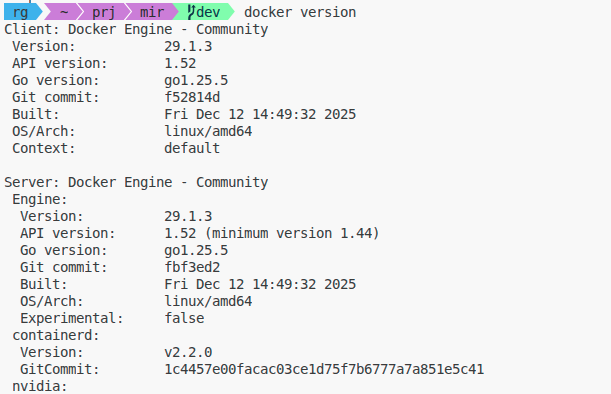
Oh-my-push prompt example.
Why Add Git Information to Your Bash Prompt?
When you’re working with multiple git repositories and branches throughout the day, context switching becomes a significant productivity drain. A git-aware prompt solves several common problems:
- Prevents branch confusion: You’ll always know which branch you’re on before committing
- Reduces command overhead: No need to constantly run
git statusandgit branch - Immediate visual feedback: See uncommitted changes, untracked files, and upstream status at a glance
- Fewer mistakes: Avoid accidentally committing to the wrong branch or pushing dirty code
Understanding the Bash PS1 Variable
The bash prompt is controlled by the PS1 environment variable. This variable can contain:
- Literal text: Any characters you want to display
- Escape sequences: Special codes starting with
\that display dynamic information - Command substitution: Commands in
$(...)that execute and display their output - ANSI color codes: Escape sequences that change text colors
Common PS1 escape sequences include:
\u- current username\h- hostname\w- current working directory\$-#for root,$for normal user\t- current time in 24-hour format
A basic prompt might look like: PS1='\u@\h:\w\$ ' producing output like user@hostname:/path/to/dir$ . For more bash fundamentals and escape sequences, check out our comprehensive Bash Cheat Sheet.
Method 1: Using Git’s Built-in git-prompt.sh Script
Git distributions include a helper script called git-prompt.sh that provides the __git_ps1 function. This is the most reliable and feature-rich approach.
Locating git-prompt.sh
First, find where the script is located on your system:
# Common locations on Linux
/usr/share/git-core/contrib/completion/git-prompt.sh
/etc/bash_completion.d/git-prompt
/usr/lib/git-core/git-sh-prompt

# Common locations on macOS (with Homebrew)
/usr/local/etc/bash_completion.d/git-prompt.sh
/Library/Developer/CommandLineTools/usr/share/git-core/git-prompt.sh

# Search for it if needed
find /usr -name git-prompt.sh 2>/dev/null
Basic Configuration
Add the following to your ~/.bashrc or ~/.bash_profile:
# Source the git-prompt script
source /usr/lib/git-core/git-sh-prompt

# Set your prompt to include git info
PS1='\[\033[01;32m\]\u@\h\[\033[00m\]:\[\033[01;34m\]\w\[\033[00m\]\[\033[01;31m\]$(__git_ps1 " (%s)")\[\033[00m\]\$ '
The $(__git_ps1 " (%s)") part calls the function, and %s is replaced with the current branch name. The surrounding spaces and parentheses format it nicely.
After editing, reload your configuration:
source ~/.bashrc
Advanced git-prompt.sh Options
Git-prompt.sh becomes powerful when you enable its optional features through environment variables:
# Show unstaged (*) and staged (+) changes
export GIT_PS1_SHOWDIRTYSTATE=1

# Show if there are stashed changes ($)
export GIT_PS1_SHOWSTASHSTATE=1

# Show if there are untracked files (%)
export GIT_PS1_SHOWUNTRACKEDFILES=1

# Show difference between HEAD and upstream
# Options: auto, verbose, name, legacy, git, svn
export GIT_PS1_SHOWUPSTREAM="auto"

# Enable colored hints (requires bash 4.0+)
export GIT_PS1_SHOWCOLORHINTS=1

# Show repository state during operations
# (MERGING, REBASING, BISECTING, etc.)
export GIT_PS1_DESCRIBE_STYLE="default"
Here’s what the indicators mean:
*- Unstaged changes (modified files not added)+- Staged changes (files added but not committed)$- Stashed changes exist%- Untracked files present<- Behind upstream branch>- Ahead of upstream branch<>- Diverged from upstream=- Equal to upstream
Complete Example Configuration
Here’s a comprehensive ~/.bashrc configuration:
# Source git-prompt
if [ -f /usr/share/git-core/contrib/completion/git-prompt.sh ]; then
    source /usr/share/git-core/contrib/completion/git-prompt.sh
fi

# Configure git-prompt options
export GIT_PS1_SHOWDIRTYSTATE=1
export GIT_PS1_SHOWSTASHSTATE=1
export GIT_PS1_SHOWUNTRACKEDFILES=1
export GIT_PS1_SHOWUPSTREAM="auto"
export GIT_PS1_SHOWCOLORHINTS=1

# Color definitions
COLOR_RESET='\[\033[00m\]'
COLOR_USER='\[\033[01;32m\]'      # Green
COLOR_PATH='\[\033[01;34m\]'      # Blue
COLOR_GIT='\[\033[01;33m\]'       # Yellow

# Set the prompt
PS1="${COLOR_USER}\u@\h${COLOR_RESET}:${COLOR_PATH}\w${COLOR_GIT}"'$(__git_ps1 " (%s)")'"${COLOR_RESET}\$ "
Method 2: Manual Git Command Substitution
If you don’t have access to git-prompt.sh or want a minimal solution, you can directly execute git commands in your prompt:
# Simple branch name only
PS1='\u@\h:\w$(git branch 2>/dev/null | grep "^*" | colrm 1 2 | sed "s/^/ (/;s/$/)/")\$ '

# Branch name with status indicator
parse_git_dirty() {
    [[ $(git status 2> /dev/null | tail -n1) != "nothing to commit, working tree clean" ]] && echo "*"
}

parse_git_branch() {
    git branch 2> /dev/null | sed -e '/^[^*]/d' -e "s/* \(.*\)/ (\1$(parse_git_dirty))/"
}

PS1='\u@\h:\w\[\033[01;33m\]$(parse_git_branch)\[\033[00m\]\$ '
This approach is more portable but lacks the sophistication of git-prompt.sh and can be slower in large repositories.
Method 3: Modern Prompt Tools
For a richer experience with minimal configuration, consider these modern alternatives:
Starship Prompt
Starship is a fast, customizable prompt written in Rust that works across multiple shells (bash, zsh, fish, PowerShell).
# Install Starship
curl -sS https://starship.rs/install.sh | sh

# Add to ~/.bashrc
eval "$(starship init bash)"
Starship automatically detects git repositories and displays:
- Branch name
- Commit hash when detached
- Repository state (merge, rebase, etc.)
- Modified files count
- Ahead/behind upstream status
- And much more with customizable icons
Configure it via ~/.config/starship.toml:
[git_branch]
symbol = "🌱 "
format = "on [$symbol$branch]($style) "

[git_status]
conflicted = "🏳"
ahead = "⇡${count}"
behind = "⇣${count}"
diverged = "⇕⇡${ahead_count}⇣${behind_count}"
untracked = "🤷"
stashed = "📦"
modified = "📝"
staged = '[++\($count\)](green)'
renamed = "👅"
deleted = "🗑"
Oh My Bash
Oh My Bash is a framework for managing bash configuration with themes and plugins:
# Install Oh My Bash
bash -c "$(curl -fsSL https://raw.githubusercontent.com/ohmybash/oh-my-bash/master/tools/install.sh)"

# Edit ~/.bashrc to set theme
OSH_THEME="powerline"
Many Oh My Bash themes include git integration by default.
Oh My Posh
Oh My Posh is a modern, cross-platform prompt engine that works with bash, zsh, PowerShell, and other shells. It provides beautiful, customizable prompts with excellent git integration and uses Nerd Fonts for icon support.
Installation on Linux
Install Oh My Posh with a single command:
# Install to ~/bin or ~/.local/bin (default)
curl -s https://ohmyposh.dev/install.sh | bash -s

# Or specify a custom installation directory
curl -s https://ohmyposh.dev/install.sh | bash -s -- -d ~/bin
Basic Setup
Add Oh My Posh to your ~/.bashrc:
# Initialize Oh My Posh with a theme
eval "$(oh-my-posh init bash --config ~/.poshthemes/jandedobbeleer.omp.json)"
Installing and Using Themes
Oh My Posh includes numerous pre-built themes. Download them first:
# Create themes directory
mkdir ~/.poshthemes

# Download all themes
curl -s https://ohmyposh.dev/themes.json | \
  jq -r '.[] | .url' | \
  xargs -I {} sh -c 'curl -s {} -o ~/.poshthemes/$(basename {})'
Popular themes include:
jandedobbeleer.omp.json- The creator’s personal theme with full git integrationpowerline.omp.json- Classic powerline styleatomic.omp.json- Minimalist with essential informationnight-owl.omp.json- Color-rich theme with extensive git details
Switch themes by changing the config path:
eval "$(oh-my-posh init bash --config ~/.poshthemes/atomic.omp.json)"
Git Features
Oh My Posh automatically displays comprehensive git information:
- Current branch name
- Commit count ahead/behind remote
- Working directory status (clean/dirty)
- Stash count
- Merge/rebase state
- Tag information
- Commit hash in detached HEAD state
Custom Configuration
Create a custom theme by copying an existing one:
# Copy a theme as starting point
cp ~/.poshthemes/jandedobbeleer.omp.json ~/.mytheme.omp.json

# Edit your theme
nano ~/.mytheme.omp.json

# Use your custom theme
eval "$(oh-my-posh init bash --config ~/.mytheme.omp.json)"
Example git segment configuration in JSON:
{
  "type": "git",
  "style": "powerline",
  "powerline_symbol": "",
  "foreground": "#193549",
  "background": "#fffb38",
  "background_templates": [
    "{{ if or (.Working.Changed) (.Staging.Changed) }}#FF9248{{ end }}",
    "{{ if and (gt .Ahead 0) (gt .Behind 0) }}#ff4500{{ end }}",
    "{{ if gt .Ahead 0 }}#B388FF{{ end }}",
    "{{ if gt .Behind 0 }}#B388FF{{ end }}"
  ],
  "properties": {
    "fetch_status": true,
    "fetch_upstream_icon": true,
    "branch_icon": " ",
    "branch_max_length": 25,
    "truncate_symbol": "…"
  }
}
Font Requirements
Oh My Posh works best with Nerd Fonts for icon support:
# Download and install a Nerd Font (example: FiraCode)
mkdir -p ~/.local/share/fonts
cd ~/.local/share/fonts
curl -fLo "FiraCode Nerd Font.ttf" \
  https://github.com/ryanoasis/nerd-fonts/raw/HEAD/patched-fonts/FiraCode/Regular/FiraCodeNerdFont-Regular.ttf
fc-cache -fv
Then configure your terminal to use the Nerd Font. See our Linux Terminal Emulators Comparison for detailed terminal emulator options.
Advantages of Oh My Posh
- Cross-platform: Same configuration works on Linux, macOS, and Windows
- Fast: Written in Go for performance
- Extensible: Modular segments for git, time, path, languages, cloud providers, etc.
- Rich themes: Large collection of pre-made themes
- Active development: Regular updates and improvements
- Terminal agnostic: Works in any ANSI-compatible terminal
Bash-git-prompt
A dedicated bash prompt tool focused on git information:
# Clone the repository
git clone https://github.com/magicmonty/bash-git-prompt.git ~/.bash-git-prompt --depth=1

# Add to ~/.bashrc
if [ -f "$HOME/.bash-git-prompt/gitprompt.sh" ]; then
    GIT_PROMPT_ONLY_IN_REPO=1
    source $HOME/.bash-git-prompt/gitprompt.sh
fi
Performance Considerations in Large Repositories
Git status operations can be slow in large repositories. Here are optimization strategies:
Disable Expensive Features Selectively
# In .bashrc, conditionally disable features for large repos
if [ "$(git rev-parse --is-inside-work-tree 2>/dev/null)" = "true" ]; then
    repo_size=$(du -sh .git 2>/dev/null | cut -f1)
    # Disable dirty state check for repos over 100MB
    if [[ "$repo_size" =~ ^[0-9]+M$ ]] && [ "${repo_size%M}" -gt 100 ]; then
        export GIT_PS1_SHOWDIRTYSTATE=0
    fi
fi
Use Git Configuration Options
Configure git to optimize status checks:
# Enable filesystem monitor for faster status checks
git config core.fsmonitor true
git config core.untrackedCache true

# For very large repos, consider partial clones
git config core.commitGraph true
git config gc.writeCommitGraph true
Alternative: Asynchronous Prompts
Tools like Starship use asynchronous operations to prevent prompt lag. The prompt updates after the git information is retrieved, rather than blocking.
Troubleshooting Common Issues
Prompt Not Showing Git Information
- Verify git-prompt.sh is sourced: Run
type __git_ps1in your terminal. If it says “not found”, the script isn’t loaded. - Check file permissions: Ensure git-prompt.sh is readable:
ls -l /path/to/git-prompt.sh - Verify you’re in a git repository: Run
git statusto confirm - Check PS1 syntax: Ensure
$(__git_ps1)is included and properly quoted
Colors Not Displaying
- Escape sequence issues: Colors in PS1 must be wrapped in
\[ \]to prevent line wrapping issues - Terminal support: Verify your terminal supports ANSI colors:
echo -e "\033[31mRed Text\033[0m" - Reset codes: Always end color sequences with reset code
\033[00m
Prompt Breaking Line Wrap
When using colors, non-printing escape sequences must be wrapped in \[ and \]:
# Wrong - causes line wrap issues
PS1="\033[32m\u\033[00m\$ "

# Correct
PS1="\[\033[32m\]\u\[\033[00m\]\$ "
Slow Prompt in WSL or Network Drives
Git operations on Windows network shares or WSL can be slow:
# Disable expensive git-prompt features on slow filesystems
export GIT_PS1_SHOWDIRTYSTATE=0
export GIT_PS1_SHOWUNTRACKEDFILES=0
Consider using native Windows Git bash instead of WSL for repositories on Windows drives. For managing multiple terminal windows efficiently, see How to start terminal windows tiled.
Integration with Development Workflows
A git-aware prompt becomes even more powerful when combined with other shell enhancements:
Git Aliases for Quick Navigation
Combine your enhanced prompt with useful git aliases to maximize efficiency. For a comprehensive list of git commands and shortcuts, see our GIT commands cheatsheet.
# Add to ~/.gitconfig or ~/.bashrc
alias gs='git status'
alias gb='git branch'
alias gc='git checkout'
alias gp='git pull'
alias gpu='git push'
Conditional Prompt Behavior
# Different prompt colors for different states
__git_ps1_colorize() {
    local git_status="$(git status 2>/dev/null)"
    if [[ $git_status =~ "nothing to commit" ]]; then
        echo -e "\[\033[32m\]"  # Green for clean
    else
        echo -e "\[\033[31m\]"  # Red for dirty
    fi
}

PS1='\u@\h:\w$(__git_ps1_colorize)$(__git_ps1 " (%s)")\[\033[00m\]\$ '
Terminal Title Bar Integration
Update the terminal title with repository information:
PROMPT_COMMAND='echo -ne "\033]0;${PWD##*/}$(__git_ps1 " [%s]")\007"'
Best Practices and Recommendations
- Keep it readable: Don’t overcrowd your prompt with too much information
- Use colors strategically: Different colors for different states (clean vs dirty)
- Test in multiple scenarios: Verify prompt works in regular directories, git repos, and during git operations
- Document your configuration: Comment your .bashrc so you remember what each part does
- Back up your config: Version control your dotfiles in a git repository. If you’re running your own git server, you might want to explore Gitea server installing as a lightweight self-hosted option
- Consider your workflow: Enable only the features you actually need
- Use modern tools when possible: Starship and similar tools are well-tested and performant
For self-hosted git solutions, learn about Gitea Backup and Restore to ensure your repositories are protected. If you’re interested in automating your git workflows, explore our GitHub Actions cheatsheet for comprehensive CI/CD automation.
Useful Links
- Git official documentation on git-prompt.sh
- Starship Prompt Official Site
- Oh My Posh Official Documentation
- Oh My Posh Themes Gallery
- Bash Hackers Wiki - PS1 Configuration
- Oh My Bash GitHub Repository
- Bash-git-prompt GitHub Repository
- Nerd Fonts Official Site
- ANSI Escape Code Reference
- Git Performance Tips for Large Repositories
