
Playwright:网络爬取与测试
掌握浏览器自动化进行测试与数据抓取
Playwright 是一个强大且现代的浏览器自动化框架,它彻底改变了网络爬虫和端到端测试的方式。
由微软开发,它为自动化 Chromium、Firefox 和 WebKit 浏览器提供了统一的 API,具有前所未有的可靠性和速度。
什么是 Playwright?
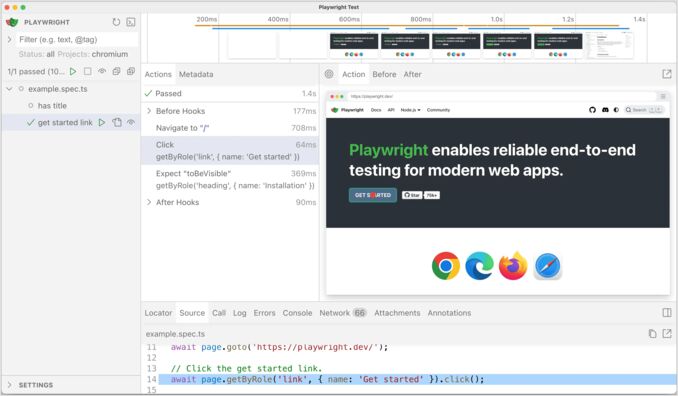
Playwright 是一个开源的浏览器自动化框架,使开发人员能够编写可靠的端到端测试并构建复杂的网络爬虫解决方案。与传统的自动化工具不同,Playwright 是从零开始构建的,旨在处理现代 Web 应用程序、动态内容、单页应用(SPAs)和复杂的 JavaScript 框架。
该框架解决了之前自动化工具所面临的核心问题:测试的不可靠性。Playwright 引入了自动等待机制,在执行操作之前自动等待元素变为可操作状态,从而消除了需要任意超时和睡眠语句导致测试不可靠的问题。
主要特性
跨浏览器支持:Playwright 支持所有主要的浏览器引擎 - Chromium(包括 Chrome 和 Edge)、Firefox 和 WebKit(Safari)。这意味着你可以编写一次自动化脚本,无需修改即可在不同浏览器上运行,确保 Web 应用程序在任何地方都能一致运行。
自动等待:Playwright 最强大的功能之一是其内置的自动等待机制。在执行任何操作之前,Playwright 会自动等待元素变得可见、启用、稳定且未被遮挡。这消除了竞态条件,与需要显式等待的工具(如 Selenium)相比,使测试显著更可靠。
网络拦截:Playwright 允许你拦截、修改和模拟网络请求和响应。这对于测试边界情况、模拟慢速网络、在爬虫过程中阻止不必要的资源或在不需要后端的情况下模拟 API 响应非常有价值。
移动设备模拟:通过模拟具有特定视口大小、用户代理和触摸事件的移动设备来测试移动 Web 应用程序。Playwright 包含了流行手机和平板电脑的设备描述符。
强大的选择器:除了 CSS 和 XPath 选择器外,Playwright 还支持文本选择器、基于角色的选择器用于无障碍测试,以及用于组件框架的实验性 React 和 Vue 选择器。
安装和设置
在不同编程语言中设置 Playwright 非常简单。
Python 安装
对于 Python 项目,可以通过 pip 安装 Playwright,并且包括同步和异步 API。如果你正在寻找更快、更现代的 Python 包管理器,请查看我们的指南 uv - Python 包、项目和环境管理器:
# 安装 Playwright 包
pip install playwright

# 安装浏览器(Chromium、Firefox、WebKit)
playwright install

# 仅安装特定浏览器
playwright install chromium
在使用 Playwright 时,有关 Python 语法和常用命令的全面参考,请参阅我们的 Python 快速参考.
JavaScript/TypeScript 安装
对于 Node.js 项目,通过 npm 或 yarn 安装 Playwright:
# 使用 npm
npm init playwright@latest

# 使用 yarn
yarn create playwright

# 手动安装
npm install -D @playwright/test
npx playwright install
npm init playwright 命令提供了一个交互式设置,用于配置项目、示例测试、配置文件和 GitHub Actions 工作流。
基本配置
创建 playwright.config.ts(TypeScript)或 playwright.config.js(JavaScript)文件:
import { defineConfig, devices } from '@playwright/test';

export default defineConfig({
  testDir: './tests',
  timeout: 30000,
  retries: 2,
  workers: 4,
  use: {
    headless: true,
    viewport: { width: 1280, height: 720 },
    screenshot: 'only-on-failure',
    video: 'retain-on-failure',
  },
  projects: [
    {
      name: 'chromium',
      use: { ...devices['Desktop Chrome'] },
    },
    {
      name: 'firefox',
      use: { ...devices['Desktop Firefox'] },
    },
    {
      name: 'webkit',
      use: { ...devices['Desktop Safari'] },
    },
  ],
});
使用 Playwright 进行网络爬虫
Playwright 在网络爬虫方面表现出色,特别是对于传统爬虫库难以处理的现代网站的动态内容。
基本爬虫示例
以下是一个全面的 Python 示例,展示了核心爬虫概念:
from playwright.sync_api import sync_playwright
import json

def scrape_website():
    with sync_playwright() as p:
        # 启动浏览器
        browser = p.chromium.launch(headless=True)

        # 创建隔离上下文
        context = browser.new_context(
            viewport={'width': 1920, 'height': 1080},
            user_agent='Mozilla/5.0 (Windows NT 10.0; Win64; x64)'
        )

        # 打开新页面
        page = context.new_page()

        # 导航到 URL
        page.goto('https://example.com/products')

        # 等待内容加载
        page.wait_for_selector('.product-item')

        # 提取数据
        products = page.query_selector_all('.product-item')

        data = []
        for product in products:
            title = product.query_selector('h2').inner_text()
            price = product.query_selector('.price').inner_text()
            url = product.query_selector('a').get_attribute('href')

            data.append({
                'title': title,
                'price': price,
                'url': url
            })

        # 清理
        browser.close()

        return data

# 运行爬虫
results = scrape_website()
print(json.dumps(results, indent=2))
处理动态内容
现代网站通常通过 JavaScript 动态加载内容。Playwright 能够无缝处理这一点:
async def scrape_dynamic_content():
    async with async_playwright() as p:
        browser = await p.chromium.launch()
        page = await browser.new_page()

        await page.goto('https://example.com/infinite-scroll')

        # 滚动加载更多内容
        for _ in range(5):
            await page.evaluate('window.scrollTo(0, document.body.scrollHeight)')
            await page.wait_for_timeout(2000)

        # 等待网络空闲
        await page.wait_for_load_state('networkidle')

        # 提取所有加载的项目
        items = await page.query_selector_all('.item')

        await browser.close()
将爬取的内容转换为 Markdown
在使用 Playwright 提取 HTML 内容后,通常需要将其转换为更易用的格式。有关将 HTML 转换为 Markdown 的全面指南,请参阅我们的文章 使用 Python 将 HTML 转换为 Markdown:全面指南,其中比较了 6 个不同的 Python 库,以及 使用 LLM 和 Ollama 将 HTML 内容转换为 Markdown 用于 AI 驱动的转换。如果你正在处理 Word 文档,可以查看我们的指南 将 Word 文档转换为 Markdown.
认证和会话管理
当爬虫需要认证时,Playwright 使保存和重用浏览器状态变得容易:
def login_and_save_session():
    with sync_playwright() as p:
        browser = p.chromium.launch(headless=False)
        context = browser.new_context()
        page = context.new_page()

        # 登录
        page.goto('https://example.com/login')
        page.fill('input[name="username"]', 'your_username')
        page.fill('input[name="password"]', 'your_password')
        page.click('button[type="submit"]')

        # 登录后等待导航
        page.wait_for_url('**/dashboard')

        # 保存认证状态
        context.storage_state(path='auth_state.json')

        browser.close()

def scrape_with_saved_session():
    with sync_playwright() as p:
        browser = p.chromium.launch()
        # 重用保存的认证状态
        context = browser.new_context(storage_state='auth_state.json')
        page = context.new_page()

        # 已经认证!
        page.goto('https://example.com/protected-data')
        # ... 爬取受保护的内容

        browser.close()
这种方法在处理 API 或构建 AI 集成的 MCP 服务器时特别有用。有关在 AI 工具集成中实现网络爬虫的完整指南,请参阅我们的文章 使用 Python 构建 MCP 服务器:WebSearch & Scrape.
端到端测试
Playwright 的主要用途是为 Web 应用程序编写健壮的端到端测试。
编写你的第一个测试
以下是一个完整的 TypeScript 测试示例:
import { test, expect } from '@playwright/test';

test('用户可以将商品添加到购物车', async ({ page }) => {
  // 导航到主页
  await page.goto('https://example-shop.com');

  // 搜索商品
  await page.fill('[data-testid="search-input"]', 'laptop');
  await page.press('[data-testid="search-input"]', 'Enter');

  // 等待搜索结果
  await expect(page.locator('.product-card')).toBeVisible();

  // 点击第一个商品
  await page.locator('.product-card').first().click();

  // 验证商品页面已加载
  await expect(page).toHaveURL(/\/product\/.+/);

  // 添加到购物车
  await page.click('[data-testid="add-to-cart"]');

  // 验证购物车已更新
  const cartCount = page.locator('[data-testid="cart-count"]');
  await expect(cartCount).toHaveText('1');
});
页面对象模型
对于较大的测试套件,使用页面对象模型模式可以提高可维护性:
// pages/LoginPage.ts
export class LoginPage {
  constructor(private page: Page) {}

  async navigate() {
    await this.page.goto('/login');
  }

  async login(username: string, password: string) {
    await this.page.fill('[name="username"]', username);
    await this.page.fill('[name="password"]', password);
    await this.page.click('button[type="submit"]');
  }

  async getErrorMessage() {
    return await this.page.locator('.error-message').textContent();
  }
}

// tests/login.spec.ts
import { test, expect } from '@playwright/test';
import { LoginPage } from '../pages/LoginPage';

test('使用无效凭据登录显示错误', async ({ page }) => {
  const loginPage = new LoginPage(page);
  await loginPage.navigate();
  await loginPage.login('invalid@email.com', 'wrongpass');

  const error = await loginPage.getErrorMessage();
  expect(error).toContain('无效凭据');
});
高级功能
Codegen - 自动生成测试
Playwright 的 Codegen 工具通过记录你与网页的交互来生成测试:
# 打开 Codegen
playwright codegen example.com

# 使用特定浏览器
playwright codegen --browser firefox example.com

# 使用保存的认证状态
playwright codegen --load-storage=auth.json example.com
当你与页面交互时,Codegen 会实时生成代码。这对于快速原型测试或学习 Playwright 的选择器语法非常有用。
跟踪查看器用于调试
当测试失败时,理解原因可能很困难。Playwright 的跟踪查看器提供了测试执行的时间线视图:
// 在配置中启用跟踪
use: {
  trace: 'on-first-retry',
}
测试失败并重试后,查看跟踪:
playwright show-trace trace.zip
跟踪查看器显示每个操作的截图、网络活动、控制台日志和 DOM 快照,使调试变得简单。
网络拦截和模拟
拦截和修改网络流量以测试边界情况:
def test_with_mocked_api():
    with sync_playwright() as p:
        browser = p.chromium.launch()
        page = browser.new_page()

        # 模拟 API 响应
        def handle_route(route):
            if 'api/products' in route.request.url:
                route.fulfill(
                    status=200,
                    body=json.dumps({
                        'products': [
                            {'id': 1, 'name': '测试产品', 'price': 99.99}
                        ]
                    })
                )
            else:
                route.continue_()

        page.route('**/*', handle_route)

        page.goto('https://example.com')
        # 页面现在使用模拟数据

        browser.close()
移动测试
在各种设备上测试响应式设计:
from playwright.sync_api import sync_playwright

def test_mobile():
    with sync_playwright() as p:
        # 使用设备描述符
        iphone_13 = p.devices['iPhone 13']

        browser = p.webkit.launch()
        context = browser.new_context(**iphone_13)
        page = context.new_page()

        page.goto('https://example.com')

        # 作为移动用户交互
        page.locator('#mobile-menu-button').click()

        browser.close()
最佳实践
对于网络爬虫
- 生产环境中使用无头模式:无头浏览更快且使用资源更少
- 实现速率限制:通过请求之间的延迟尊重目标网站
- 优雅地处理错误:网络问题、超时和选择器更改会发生
- 轮换用户代理:通过改变浏览器指纹避免检测
- 尊重 robots.txt:检查并遵循网站爬虫政策
- 使用上下文隔离:为并行爬虫创建单独的浏览器上下文
在将爬取内容转换为 markdown 格式时,可以考虑使用基于 LLM 的转换工具或专门用于 HTML 到 Markdown 转换的 Python 库,以获得更干净的输出。
对于测试
- 使用 data-testid 属性:比频繁更改的 CSS 类更稳定
- 避免硬等待:使用 Playwright 的内置等待机制而不是
sleep() - 保持测试独立:每个测试都应该能够独立运行
- 使用 Fixtures:高效地在测试之间共享设置代码
- 并行运行测试:利用 Playwright 的工作线程提高速度
- 在失败时记录跟踪:启用跟踪记录以便于调试
性能优化
# 禁用不必要的资源
def fast_scraping():
    with sync_playwright() as p:
        browser = p.chromium.launch()
        context = browser.new_context()
        page = context.new_page()

        # 块图像和样式表以加快爬虫速度
        async def block_resources(route):
            if route.request.resource_type in ['image', 'stylesheet', 'font']:
                await route.abort()
            else:
                await route.continue_()

        page.route('**/*', block_resources)
        page.goto('https://example.com')

        browser.close()
与替代方案的比较
Playwright 与 Selenium
Playwright 的优势:
- 内置自动等待消除了测试的不可靠性
- 由于现代架构,执行速度更快
- 更好的网络拦截和模拟
- 更强大的调试工具(跟踪查看器)
- 更简洁的 API,减少样板代码
- 单次安装支持多个浏览器
Selenium 的优势:
- 更成熟的生态系统和广泛的社区
- 支持更多编程语言
- 更广泛的浏览器兼容性,包括旧版本
Playwright 与 Puppeteer
Playwright 的优势:
- 真正的跨浏览器支持(Firefox、WebKit、Chromium)
- 基于 Puppeteer 的经验设计更好的 API
- 更强大的调试工具
- 微软支持和积极开发
Puppeteer 的优势:
- 稍小的足迹
- Chrome DevTools 协议的专业知识
对于大多数新项目,由于其现代架构和全面的功能集,Playwright 是首选。如果你使用的是 Go 而不是 Python 或 JavaScript,并且需要网络爬虫功能,请查看我们的指南 Beautiful Soup 的 Go 替代方案 以获取 Go 生态系统中功能相当的爬虫工具。
常见用例
为 AI/LLM 应用程序提取数据
Playwright 非常适合收集训练数据或为 AI 模型创建网络搜索功能。在构建 MCP(模型上下文协议)服务器时,Playwright 可以处理网络爬虫部分,而 LLM 处理提取的内容。
在 CI/CD 中自动化测试
将 Playwright 测试集成到你的持续集成管道中:
# .github/workflows/playwright.yml
name: Playwright Tests
on:
  push:
    branches: [ main, master ]
  pull_request:
    branches: [ main, master ]
jobs:
  test:
    timeout-minutes: 60
    runs-on: ubuntu-latest
    steps:
    - uses: actions/checkout@v3
    - uses: actions/setup-node@v3
      with:
        node-version: 18
    - name: 安装依赖项
      run: npm ci
    - name: 安装 Playwright 浏览器
      run: npx playwright install --with-deps
    - name: 运行 Playwright 测试
      run: npx playwright test
    - uses: actions/upload-artifact@v3
      if: always()
      with:
        name: playwright-report
        path: playwright-report/
        retention-days: 30
网站监控
监控你的生产网站的运行时间和功能:
import schedule
import time

def monitor_website():
    with sync_playwright() as p:
        try:
            browser = p.chromium.launch()
            page = browser.new_page()
            page.goto('https://your-site.com', timeout=30000)

            # 检查关键元素
            assert page.is_visible('.header')
            assert page.is_visible('#main-content')

            print("✓ 网站状态正常")
        except Exception as e:
            print(f"✗ 检测到网站问题: {e}")
            # 发送警报
        finally:
            browser.close()

# 每 5 分钟运行一次
schedule.every(5).minutes.do(monitor_website)

while True:
    schedule.run_pending()
    time.sleep(1)
常见问题排查
浏览器安装问题
如果浏览器下载失败:
# 设置自定义下载位置
PLAYWRIGHT_BROWSERS_PATH=/custom/path playwright install

# 清除缓存并重新安装
playwright uninstall
playwright install
超时错误
增加超时时间以处理慢速网络或复杂页面:
page.goto('https://slow-site.com', timeout=60000)  # 60 秒
page.wait_for_selector('.element', timeout=30000)  # 30 秒
选择器未找到
使用 Playwright 检查器识别正确的选择器:
PWDEBUG=1 pytest test_file.py
这将打开检查器,你可以将鼠标悬停在元素上以查看其选择器。
结论
Playwright 代表了浏览器自动化技术的前沿,结合了强大的功能和出色的开发人员体验。无论你是构建网络爬虫管道、实现全面的测试覆盖率还是创建自动化工作流程,Playwright 都提供了你需要的工具和可靠性。
其自动等待机制消除了测试的不可靠性,跨浏览器支持确保你的应用程序在任何地方都能正常运行,强大的调试工具使故障排除变得简单。随着 Web 应用程序的复杂性不断增加,Playwright 的现代架构和积极开发使其成为任何浏览器自动化需求的绝佳选择。
对于正在处理数据管道或网络爬虫项目的 Python 开发人员,Playwright 与现代包管理器无缝集成,并与 pandas、requests 和其他数据科学工具协同工作良好。从复杂现代网站中提取结构化数据的能力使其在 AI 应用程序、研究项目和商业智能中不可或缺。当与 HTML 到 Markdown 转换工具和适当的内容处理相结合时,Playwright 成为了大规模提取、转换和利用网络数据的完整解决方案。
有用的链接
- Python 快速参考
- uv - Python 包、项目和环境管理器
- 使用 LLM 和 Ollama 将 HTML 内容转换为 Markdown
- 将 Word 文档转换为 Markdown:完整指南
- 使用 Python 将 HTML 转换为 Markdown:全面指南
- 使用 Python 构建 MCP 服务器:WebSearch & Scrape
- Go 的 Beautiful Soup 替代方案
